Samsung & LG Smart TV IPTV Setup Guide 2026: Installation, Login, and Troubleshooting
Set up lawful IPTV streaming on Samsung Tizen and LG webOS TVs with model checks, app installation, secure login, network tuning, and troubleshooting.
Published by the channelmoa editorial team. This article provides general streaming setup guidance and distinguishes device or regional variables where they apply.
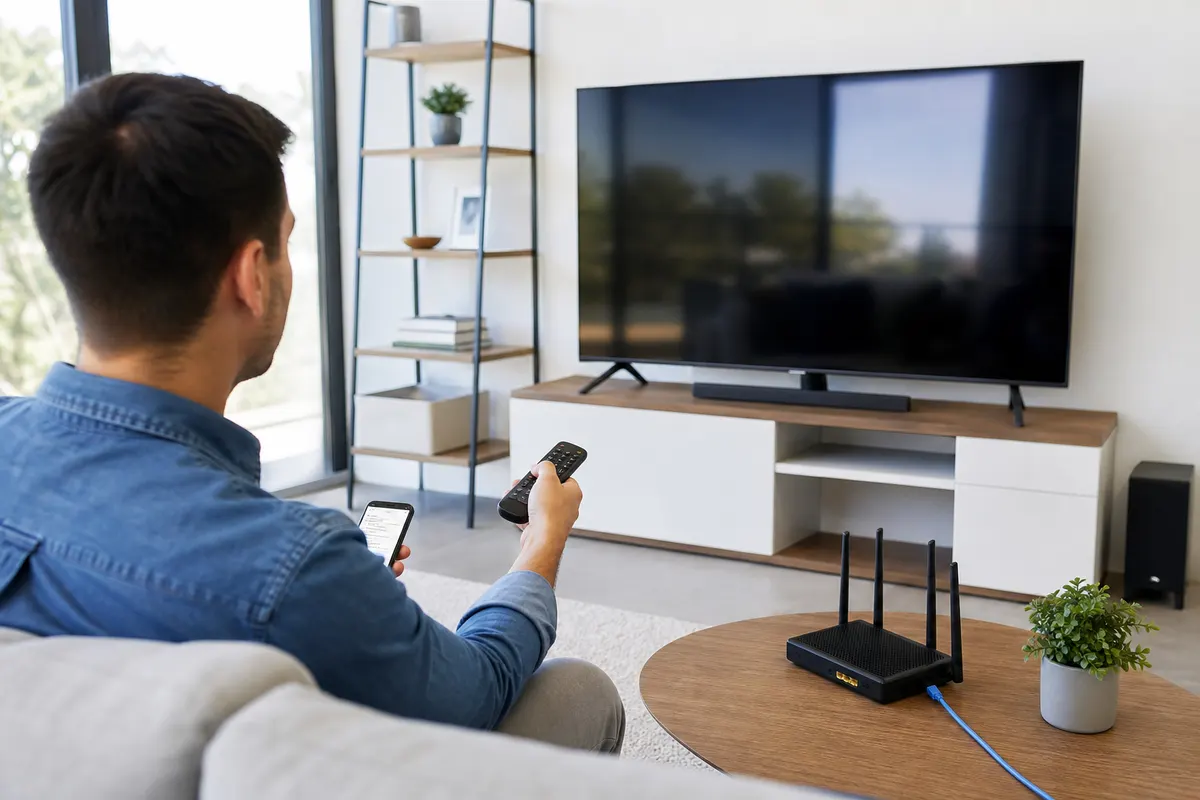
| Setup area | Samsung Tizen TV | LG webOS TV | What to verify |
|---|---|---|---|
| App source | Samsung TV app store/search | LG Content Store/app search | Exact app name, publisher, region, model, and OS support |
| System identity | Model code and software version in support/settings menus | Model number and webOS/software version in support/settings menus | Record the full values before asking for help |
| Restart method | Cold restart or power cycle after closing the app | Full power cycle after closing the app | Allow the TV to shut down before disconnecting power |
| Wired network | Built-in Ethernet where fitted | Built-in Ethernet where fitted | Port capability, cable condition, router link, and actual stability |
| External-device trigger | Missing app, aging Tizen version, low storage, slow navigation | Missing app, aging webOS version, low storage, slow navigation | Keep the display if its picture is good; move apps to maintained hardware |
Start with the correct answer: the television decides the setup path
A Samsung or LG Smart TV can be a convenient place to run a legitimate television streaming service because it removes an extra box and keeps daily viewing on one remote. The correct setup, however, is not simply to search for the first player whose name looks familiar. Samsung televisions generally use the Tizen platform and LG televisions generally use webOS, but app support differs between those ecosystems and also between countries, model years, software releases, and store regions. Begin by identifying the exact television, confirming the service is lawful in your location, and obtaining the supported player name and login method from the service provider.
This guide separates Samsung and LG procedures while keeping the diagnostic method consistent. Prepare the TV, verify the store listing, install through the normal platform controls, enter only the credentials intended for the streaming service, and test one layer at a time. Do not assume that an app available on a recent television is available on an older set from the same manufacturer. Likewise, do not treat a missing store result as permission to download an unknown package from a website. The supported route is the one documented for your exact model, operating system, and region.
Define a lawful and supportable setup
Before changing the television, confirm what you are authorized to watch and which account rules apply. A legitimate provider should be able to describe the package, supported region, sign-in format, concurrent-session limit, and recommended app without asking for passwords to unrelated accounts. If you are still assessing a service, use the legal IPTV subscription checklist to record the commercial and technical details before committing to a long term. The application is only a player; installing it does not establish that every playlist or stream entered into it is licensed.
Keep the two platform identities distinct. Tizen applications are built and distributed for Samsung's television environment, while webOS applications target LG's environment. Similar names in two stores do not guarantee identical features, decoder behavior, subscription terms, or account formats. Treat each listing as a separate product. Read the publisher name, supported languages, privacy information, permissions, update date, and any purchase terms displayed by the television store before installation.
Prepare the TV, account, remote, and network before installation
A ten-minute preparation pass prevents many failures that are mistakenly blamed on the account. Find the original remote or a fully functional replacement, because app installation may require buttons that a minimal universal remote does not expose. Confirm the TV has a stable internet connection, correct date and time, enough free storage, and access to the television-platform account used for its app store. Finish any pending system update only when you have time to let the TV restart without interruption. Photograph or write down the current network and picture settings before altering them.
Gather the legitimate service details separately. You may receive a username and password, a provider-approved portal address, a playlist address, or an activation process tied to a device identifier. Use only the method the provider and player both support. Never post those values in a public forum, include them in an unredacted screenshot, or reuse an important email or banking password. Confirm how many devices may be registered and how many streams may run simultaneously; an apparent login failure can be an account-limit response from another active screen.
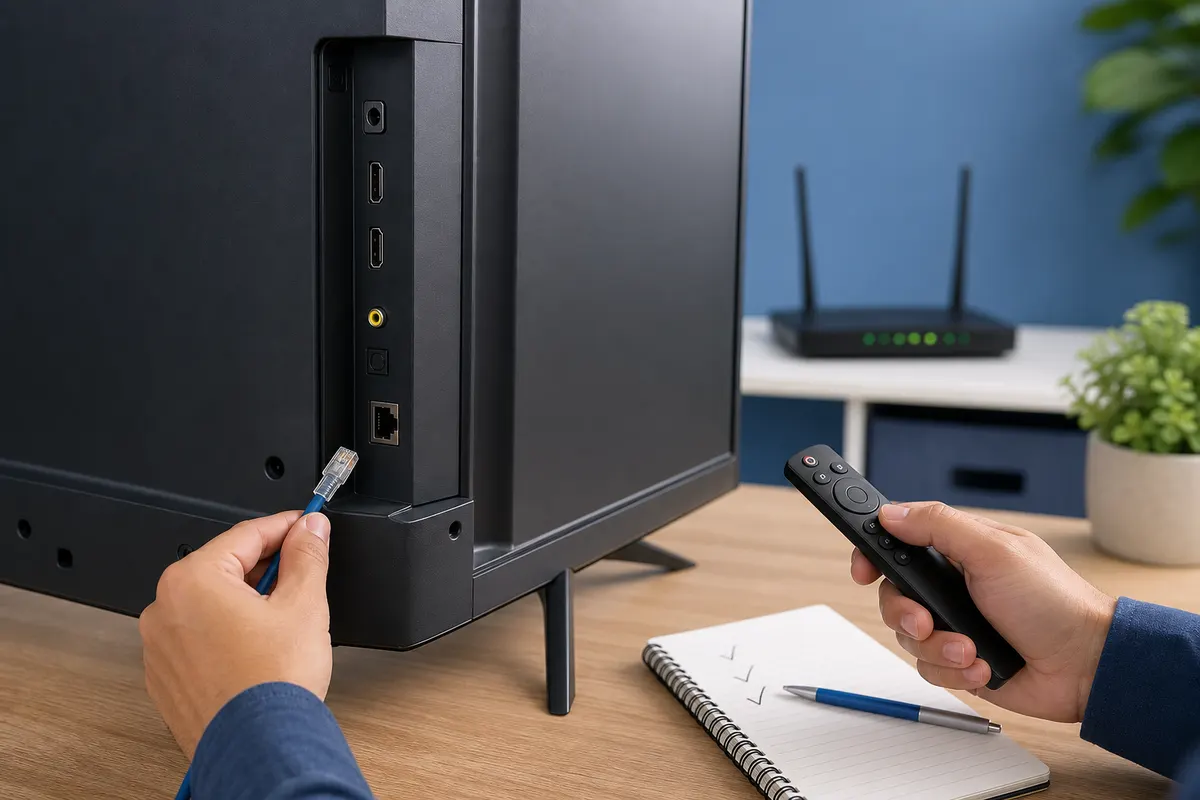
Use a short preparation checklist
Record the TV brand, full model code, software version, country or store region, connection type, free storage if shown, and intended app name. Test another reputable streaming application or a high-quality sample that you are authorized to view. If all services already stutter, solve the television or network problem before adding a new player. If the existing services work, that result becomes a useful baseline. The moa tv app setup guide explains the wider account and playback handover process without assuming that one app exists on every television.
Place the router and television sensibly. A TV mounted against a dense wall, metal bracket, or cabinet may receive poorer Wi-Fi than a phone held in front of it. If Ethernet is available, inspect the cable and router port rather than assuming a plugged-in cable is working. Keep the power lead secure, avoid overloaded adapters, and leave ventilation space around the set. Installation is easier when storage, network, account, and hardware conditions are known before the first download.
Find the Samsung model code, Tizen generation, and software version
On a Samsung television, open Settings and look under Support, About This TV, Device Care, or Software Update. Menu names vary by model and year, so use the built-in help or the official manual for the model when those labels differ. Record the complete model code rather than only the series printed in an advertisement. Closely related models sold in different regions can have different tuners, store catalogs, memory configurations, and firmware schedules. The displayed software version is equally important when a developer specifies a minimum supported release.
Do not infer compatibility from the word Tizen alone. The platform has evolved over many television generations, and an application publisher may discontinue builds for older versions even while the television itself remains functional. Open the Samsung app area, confirm the TV is signed into the expected platform account, and search the exact app name supplied by the legitimate service. Inspect the publisher and listing details. Search results, availability, and features can vary with model, operating-system version, country, and store region.
Install on Samsung without bypassing normal safeguards
Select the verified listing, choose Install, and wait until the television reports completion. Add the app to the home bar if that makes it easier for the household to find, then open it once and note any permission or privacy prompt. A media player may reasonably need network access and local storage for settings or guide data; unrelated access should be questioned. Avoid developer mode, unknown USB packages, unofficial download pages, or instructions that disable security controls merely to make an unsupported app appear on the TV.
If the result is missing, clear any active search filter, confirm the store region matches your actual residence, restart the TV, and check for a stable supported firmware update. A country change can affect terms, billing, and other installed services, so do not switch regions as a casual workaround. Ask the application publisher or provider whether the full model code is supported. When the answer is no, use a compatible external streaming device instead of forcing a package designed for another platform.
Find the LG model number, webOS version, and store region
On an LG television, check Settings or All Settings and look in Support, TV Information, About This TV, or Software Update. The precise route changes across webOS releases. Record the complete model number and the displayed software or webOS version, then compare those values with the application's official support information. A retail family name is not precise enough for remote troubleshooting. Also confirm the television's location and service-country settings reflect where it is actually used because the LG Content Store catalog can differ by region.
Open the LG Content Store or the current apps area and search the exact supported application name. Verify its publisher, icon, description, supported controls, and account requirements rather than choosing a look-alike. Availability on one LG set does not prove availability on another: country, model, operating-system version, and store policy can all affect the result. If the provider cannot identify a supported webOS route for your model, pause rather than experimenting with unrelated applications and exposing account details.
Install and launch on LG methodically
Choose the verified listing, install it, and allow the download to finish before opening other heavy apps. Pin or move the player within the launcher only after confirming it starts normally. Review privacy and permission prompts in context. If the app requests a separate activation or purchase, establish whether that payment belongs to the player publisher and is distinct from the content service. A player license and a streaming subscription are different products, and neither should be assumed to include the other.
For a missing listing, confirm the exact spelling, remove search filters, restart webOS, and check for a supported system update. Do not repeatedly change service countries to chase a listing; this may alter available services and agreements. Consult the official app listing or support channel with the model number, webOS version, and country. If the app was previously installed but has disappeared, determine whether it was withdrawn for the platform or merely removed from the launcher before resetting the television.
Complete login and service configuration without exposing credentials
Television keyboards make exact credential entry surprisingly difficult. First select the login method specified by the provider: username and password, portal, playlist address, or supported device activation. These formats are not interchangeable. Enter each value once, checking capitalization, punctuation, and accidental spaces. If the app offers a temporary reveal control, use it only when nobody can view or record the screen. Do not send a photograph containing a password or full playlist address when asking for support.
Playlist or portal configuration is appropriate only when the player supports it and the source provides content you are permitted to access. Give the profile a neutral household label rather than embedding a password in its name. If a long address must be entered through a companion page or code, verify that the page belongs to the genuine application publisher and that the TV displays the same session. Avoid third-party conversion sites that ask you to paste private service addresses; those values can function like credentials.
Separate authentication from catalog loading
A rejected username is different from a successful login followed by an empty catalog. Capture the exact stage and message. For authentication errors, verify account status, expiry, credentials, selected login type, device registration, and concurrent sessions. For a catalog that never loads, confirm the network, allow the first synchronization time to finish, and ask whether the service endpoint is healthy. Do not immediately reinstall the app, change DNS, reset the router, and request new credentials at the same time; that destroys the evidence needed to identify the fault.
After the first successful load, test authorized live content, on-demand content if included, search, favorites, guide timing, subtitles where available, and a complete close-and-reopen cycle. Confirm the app retains the profile without showing credentials openly. Teach other household members how to exit cleanly so an unseen session does not continue using an account slot. Store the provider's support route and the app version, but keep secrets in an appropriate password manager rather than a note attached to the TV.
Choose Ethernet or Wi-Fi based on stability, not convenience alone
Ethernet is a useful diagnostic baseline because it removes radio interference, distance, and roaming from the path. If the router is reasonably close and the TV has a network port, connect a known-good cable and confirm the settings show a wired connection. Some televisions use ports whose maximum speed is lower than current broadband packages, but stable throughput can still be more valuable than a faster, inconsistent Wi-Fi peak. Test the actual stream and network quality instead of judging the connection solely by its label.
Wi-Fi remains practical when cabling is difficult. Test at the television, not beside the router. A nearby phone may have a newer radio and better antenna than the TV. Compare suitable bands, avoid hiding the router behind the display, and check whether a mesh node has a strong backhaul rather than merely a strong signal icon. Run checks at the time the household normally watches, while ordinary uploads, calls, games, and cloud backups are active.
Run repeatable network checks
Use one known legal stream for ten to fifteen minutes and note start time, resolution changes, pauses, and audio behavior. Then repeat with Ethernet if available or with the router temporarily closer. Test another reputable streaming service on the same TV and the intended service on another supported device without violating simultaneous-use rules. This matrix separates a whole-home internet issue, weak television Wi-Fi, app-specific fault, and source-specific incident far better than a single speed-test number.
Check latency and packet loss when your router or computer provides trustworthy tools, but avoid inventing a universal bandwidth threshold. Required capacity changes with codec, frame rate, resolution, audio, and source bitrate. Leave headroom for other users and prefer consistent delivery. The 4K IPTV requirements guide covers display, decoder, HDMI, and network factors in more depth, while the buffering root-cause guide provides a structured isolation sequence.
Set picture and playback controls with a known test scene
Start with the television's accurate or standard picture preset rather than its brightest showroom mode. Disable aggressive motion processing, noise reduction, or artificial sharpness when it creates halos, stutter, or a video-like appearance, but preserve settings that genuinely improve your room and content. Picture preferences are personal and capabilities vary by model. Change one control at a time while replaying the same authorized scene so you can reverse a change that makes motion, skin tones, subtitles, or shadow detail worse.
Inside the player, leave decoding on its supported default before experimenting. Hardware and software decoder choices can behave differently by app, television chip, codec, and stream. A black picture with sound, colored blocks, or repeated crashes can indicate a decode path problem, but it can also reflect an unsupported format or damaged source. Test another item and record the result before changing the decoder. Do not promise that a menu labeled 4K creates 4K; source, account, app, decoder, network, and panel must all support the complete path.
Check audio, captions, frame rate, and guide timing
If audio is missing, confirm the TV output destination and test its speakers before changing advanced passthrough settings. An external receiver or soundbar adds HDMI negotiation and codec support to the chain. For lip-sync trouble, compare TV speakers with the external system and test a second source. Caption availability depends on the content and player; verify the selected language and whether the source actually carries a subtitle track before diagnosing the TV.
A guide shifted by a consistent hour often points to the television clock, time zone, daylight-saving rule, or a supported guide-offset control. An empty category is more likely a catalog or guide-data issue. Set the clock correctly and refresh through the documented app command once. Repeated large refreshes on a low-storage TV can worsen responsiveness. Preserve the working account profile and report the affected category, timestamp, and app version to support.
Troubleshoot common Samsung Tizen installation and playback problems
When a verified app will not install on Samsung, check available storage, network state, store sign-in, pending firmware, date and time, and whether the listing explicitly supports the model. Close other apps and perform a cold restart using the supported remote or power procedure for that television. Try the store again once. Repeatedly selecting Install without addressing the cause can leave queued work and offers little diagnostic value. Record any error code exactly and consult the official Samsung or app-publisher support material for that code.
If the application opens and immediately closes, first restart the set and test after other apps have been closed. Check for an app update and supported TV software update. If navigation is slow, reduce storage pressure by removing genuinely unused applications through normal controls; do not delete data you cannot restore. When only video fails, compare another authorized item and another player if the provider supports one. A Tizen-wide freeze and a single-source playback error require different responses.
Use reinstall and reset in the right order
Reinstall only after recording the app version, login method, and configuration needed to restore access. Remove the player through Samsung's standard app management, restart the TV, reinstall the same verified listing, and enter the account carefully. This can repair corrupt local data but cannot restore a withdrawn app, renew an expired account, fix weak Wi-Fi, or correct a remote service outage. If the store no longer offers the application for the model, contact the publisher rather than sourcing an unofficial package.
Reserve a platform reset or factory reset for a confirmed television-wide fault after reviewing its consequences. It removes accounts, preferences, installed apps, network settings, and picture calibration, creating substantial recovery work. The existing guide to Smart TV IPTV setup mistakes explains why early resets, random DNS changes, and simultaneous setting changes obscure the original problem. For an aging but otherwise good Samsung display, a maintained external player is often the cleaner repair.
Troubleshoot common LG webOS installation and playback problems
For an LG installation failure, confirm storage, network access, LG platform sign-in, time settings, software support, store region, and model compatibility. Fully exit the store or app and restart the television before retrying. If the download stalls, verify that other store operations and reputable services work. Write down the precise message rather than describing every failure as buffering. A store error occurs before playback and should be handled through the platform or publisher route.
If a webOS player launches but becomes unresponsive during the first guide import, leave it foregrounded long enough to complete once. Low storage and a large catalog can make initial processing slower. If it repeatedly crashes at the same stage, restart, check updates, and report the app version, model, webOS version, account method, and failing stage. Do not keep clearing data between attempts without preserving the configuration because each reset forces the heaviest first-time work to run again.
Reinstall carefully and avoid unnecessary TV-wide changes
Before deleting an LG app, verify that it remains available for the television in the current store. A removed or discontinued listing may not be recoverable after deletion. Save legitimate login information securely, uninstall through webOS controls, power-cycle the set, reinstall from the verified listing, and test before restoring optional preferences. This sequence addresses damaged local application data while preserving a clear before-and-after comparison.
Avoid a factory reset as a routine app fix. It clears the broader television environment and may change tuning, accessibility, calibration, network, and account settings without affecting a provider-side problem. Also avoid changing country, DNS, decoder, router, and password together. If other apps are healthy but the chosen player is unsupported or persistently slow on the TV, retain the LG panel and use a compatible external device whose software and hardware fit the service.
Diagnose login errors, buffering, black screens, and missing guide data
Treat the symptom as a location in the playback chain. A login rejection occurs before the catalog and points toward credentials, account status, login format, device registration, or session limits. An empty catalog after successful authentication suggests synchronization, service data, or network access. A loading symbol during every service may indicate the household connection, television radio, or app. One failing item while unrelated items play normally is narrower and should be reported with its name, category, time, and location rather than prompting a television reset.
For buffering, first stop large household transfers and replay a known item. Compare Ethernet with Wi-Fi, another legitimate app on the same television, and the account on another supported device sequentially. If menus remain responsive while all video pauses, focus on delivery and decoding. If the entire TV becomes slow, inspect storage, heat, background apps, and system health. Do not use a VPN or random DNS service as a universal fix; either can add latency, alter routing, conflict with service terms, or hide the evidence support needs.
A practical escalation record
Send support the TV model, software version, app name and version, connection type, country, approximate incident time with time zone, affected category, exact error, and the tests already completed. Redact the password, full playlist address, payment data, device identifiers not specifically required, and unrelated personal information. A precise report lets support compare incidents without asking you to repeat destructive steps. Keep the configuration stable while an issue is being investigated.
Common mistakes include copying credentials with a trailing space, selecting the wrong login type, running too many simultaneous sessions, testing only at quiet hours, assuming a Wi-Fi icon proves quality, deleting an app before checking store availability, and installing an unverified look-alike. Another mistake is changing several settings after one pause. Streaming crosses account, app, operating system, decoder, network, internet, and source layers; controlled tests are faster because each result eliminates possibilities.
Maintain the app and know when an external device is the better choice
Review the setup periodically rather than waiting for a major event. Install stable television and app updates through official controls, then test login, guide, audio, and playback before the next important viewing session. Keep reasonable free storage, remove abandoned apps, restart after significant updates, and confirm the TV clock. Do not interrupt an update or power-cycle a set while it explicitly reports firmware installation. If an update changes behavior, record the old and new versions and test one source before altering preferences.
An external device becomes sensible when the required lawful app is unavailable, the TV no longer receives suitable software support, storage is chronically tight, navigation is slow, decoding is unreliable, or wired connectivity needs an adapter the television cannot use. Supported channelmoa apps and devices lists the current alternatives, including Apple TV, covered in the Apple TV and tvOS setup guide, and portal-based boxes, covered in the MAG box and Stalker portal setup guide. The screen can remain excellent even when its built-in application platform ages. A current external box or stick can move the app workload to replaceable hardware, though it adds another remote, power connection, HDMI input, update schedule, and privacy surface.
Security, privacy, and a clean conclusion
Install only from the television's normal store or a documented provider route, verify publisher identity, review permissions, use unique account credentials, and enable appropriate account protection. Remove profiles before selling or giving away a TV. Sign out of borrowed devices and do not leave account details in photos, browser history, or support chats. Keep the TV behind a maintained home router, avoid exposing it directly to the internet, and decline remote-control requests from unknown support contacts.
A reliable Samsung or LG setup is therefore a verified chain, not a magic app name: correct model and platform, supported regional listing, secure account method, stable network, suitable playback settings, and measured troubleshooting. When those conditions are met, built-in viewing is simple. When the application platform is the weak link, an external device is a normal upgrade rather than a failure. For help matching a supported setup to your actual television, contact channelmoa with the full model and region, never with your password.
Sources and further reading
Related channelmoa resources
FAQ
Can every Samsung or LG Smart TV install the same IPTV player?
No. Application availability varies by manufacturer platform, model, operating-system version, country, store region, and publisher support. Search the exact verified listing on the actual television and confirm compatibility with the publisher or provider.
Should I change my TV country to make a missing app appear?
Not as a casual workaround. Country settings affect catalogs, terms, accounts, and other services. Use the region that reflects where the TV is used and ask the publisher for a supported alternative if the app is unavailable.
Is Ethernet always faster than Smart TV Wi-Fi?
Not necessarily in peak throughput, because TV Ethernet ports and Wi-Fi radios vary. Ethernet is often a useful stable baseline. Test sustained playback, latency, and interruptions at the TV instead of relying only on a connection label.
Why does the app reject credentials that work on another device?
Check the selected login format, capitalization, spaces, account status, device registration, and concurrent-session limits. Record the exact error and avoid repeatedly changing the password until the provider confirms the cause.
When should I reinstall the television app?
Reinstall after simpler restart, update, storage, network, and account checks, and only after confirming the verified listing remains available. Save the supported configuration securely before deletion.
When is an external streaming device preferable?
Consider one when the lawful app is unavailable, the television platform is no longer maintained, storage or decoding is inadequate, navigation is persistently slow, or the external device offers a more supportable connection and update path.
Confirm the right setup path for your television
Share your Samsung or LG model, software version, and country so support can discuss an appropriate lawful setup route without requesting private credentials.