7 Smart TV IPTV Setup Mistakes That Cause Buffering and Login Problems
Fix seven common Smart TV IPTV mistakes involving weak Wi-Fi, outdated apps, login formats, storage, DNS, EPG data, and event-day testing steps.
Published by the channelmoa editorial team. This article provides general streaming setup guidance and distinguishes device or regional variables where they apply.
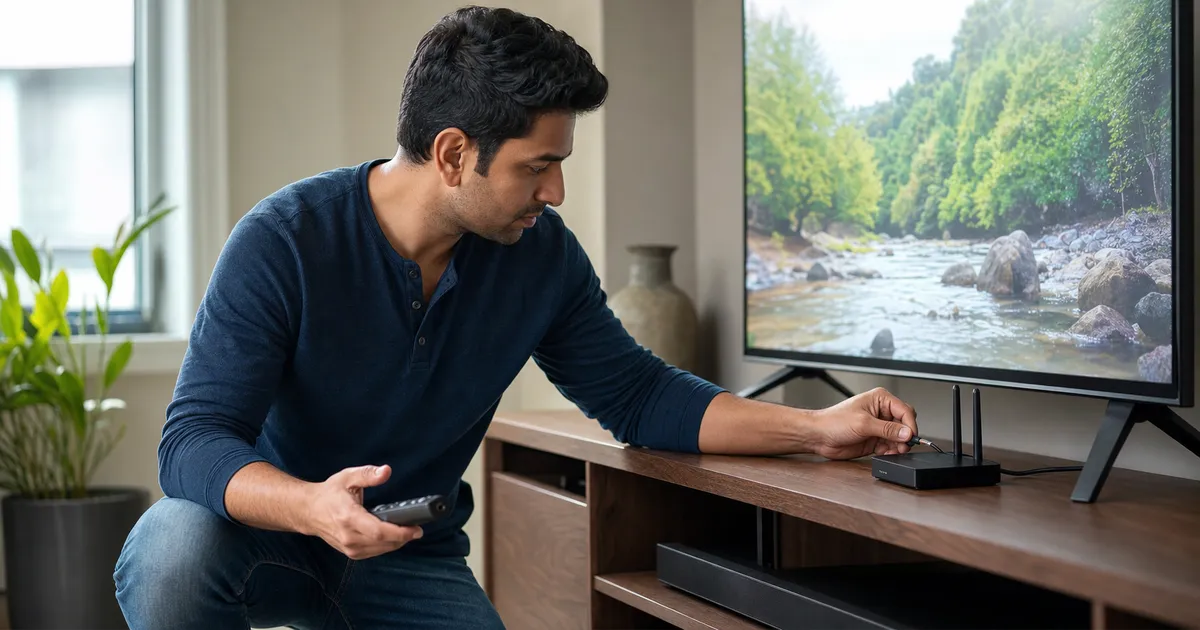
| What you see | Likely setup mistake | What to check first |
|---|---|---|
| App rejects the login outright | Wrong login format entered for that provider (portal address, username/password, and device code are not interchangeable) | Confirm the exact method the provider specified, then re-enter every field and check for a trailing space or a capital letter the remote's on-screen keyboard added |
| Login worked before, now rejected | Account or simultaneous-session limit reached, or the account status changed | Check how many devices are registered and signed in before assuming the password is wrong |
| Login accepted on a phone, rejected on the TV | The TV app is using a different login method than the one that worked on the phone | Match the login method to the one documented for that specific TV app, not the phone app |
| App opens then closes immediately | Storage nearly full, or the app or TV software is several versions out of date | Free up storage and install any pending app or system update before reinstalling |
| Channels load, then freeze or stall after some time | Wi-Fi interference or congestion that the signal icon does not reveal | Play the same content over a temporary Ethernet connection to isolate the wireless path |
| Sound plays with no picture, or picture plays with no sound | HDMI or decoder mismatch between the TV, the app, and any connected receiver | Test the TV's own speakers and a different HDMI input before touching any network or login setting |
| Guide (EPG) times are wrong or blank | TV clock, time zone, or daylight-saving setting is wrong, or the guide needs a refresh | Verify date and time first, then refresh the guide once through the app's own control |
| Playback got worse right after changing DNS or another network setting | A speculative network change that did not address the real cause | Restore the original setting and test one change at a time |
Start here: match what you see to the mistake that caused it
Two different problems get treated as one "IPTV doesn't work on my Smart TV" complaint, and they rarely share a fix. The first is a login the app rejects before anything loads — that points to the account or how the credentials were entered. The second is a login that succeeds, after which playback freezes, stalls, or loses picture or sound — that points to the network, storage, or the television itself. The table above maps the exact symptom to the mistake behind it and the fix to try first.
This page assumes the app was installed and worked at some point, then a specific symptom appeared. Samsung and LG owners still completing a first-time installation, rather than fixing something that already worked, may want the longer Samsung and LG Smart TV setup guide instead. Confirm the exact app the television platform actually supports before troubleshooting further; supported channelmoa apps and devices lists them by platform.
Two paths, not one list
If the app never lets you past the login screen, go straight to the login mistake below — nothing in the Wi-Fi, storage, or guide sections will fix an account or credential problem. If login succeeds and the fault only shows up during playback, skip the login section entirely.
One symptom sits outside both paths: sound with no picture, or a black screen with sound. That is usually an HDMI or decoder mismatch between the television, the app, and any connected receiver, not a network or account fault, so it is not one of the seven setup mistakes below. Test the television's own speakers and a different HDMI input before touching any login or network setting.
Login rejected? It's almost always mistake 3: mixing login formats
Mistake three is entering correct information into the wrong field. A username/password login, a provider portal, a playlist address, and a device code are not interchangeable, even when two players present them in similar-looking screens. Verify the intended method with the provider first, then type each value exactly. Smart TV remote keyboards routinely add a leading space or capitalize the first character without the viewer noticing, so inspect every field before assuming the account itself is wrong.
A login can also be rejected because of the account, not the entry. Check how many devices are currently registered and how many sessions are allowed to stream at once; an unexpected rejection is sometimes a session limit rather than a wrong password. Changing the password repeatedly will not fix a limit that is being reached on another screen in the house.
Separate authentication from app health
An explicit invalid-login message calls for account checks. A crash before the login screen suggests the app or television, not the account. A successful login followed by endless data loading points toward connectivity, cache, storage, or provider response instead of the credentials. Categorizing the failure this way prevents an unnecessary password reset.
Take a photo of the error only after hiding credentials. Send support the exact TV model, operating system version, player name, and the stage where the failure occurs — before or after the login screen.
A common scenario is a user who enters a portal URL into a username field, or assumes a password login will work for a provider that requires a separate device code. Those mistakes are easy to make on a TV remote, but they are still avoidable once the intended method is confirmed with the provider.
Mistakes 1 and 2: trusting the Wi-Fi icon and skipping updates
A television can show a full Wi-Fi icon while still suffering interference, packet loss, or an overloaded mesh connection. Mistake one is testing the internet beside the router instead of at the TV. Run repeated tests from the television or a device placed beside it, and compare evening results with quieter hours. If practical, connect Ethernet temporarily; a dramatic improvement identifies the wireless path as the problem.
Mistake two is allowing the TV firmware and IPTV app to drift several versions behind. Updates can improve certificates, codecs, memory handling, and login compatibility. Update deliberately, restart the television, and open the app once before a planned event. Do not wait until viewing time, because a large system update may consume storage or change settings. If the failure is specifically 4K or HDR playback while standard playback is fine, the 4K streaming requirements guide covers the additional decoder and HDMI conditions involved.
Build a stable baseline first
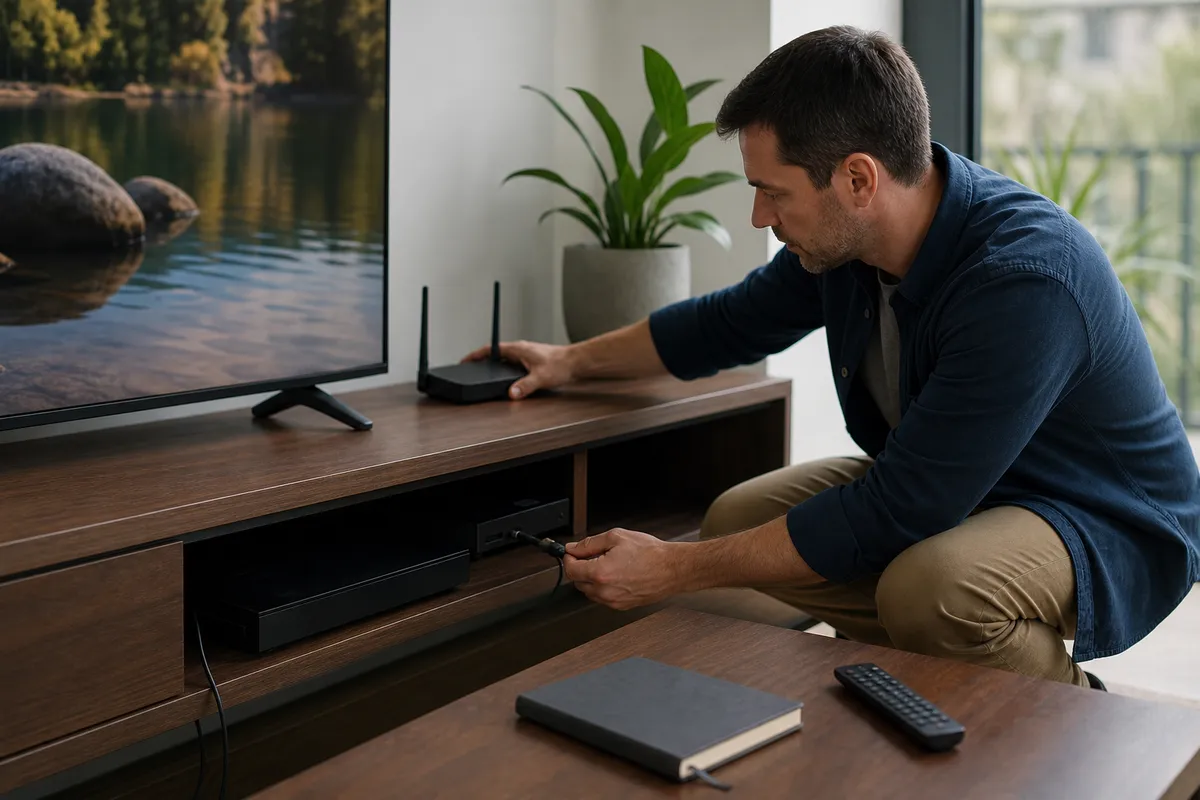
Place the router in the open, avoid stacking it behind the television, and remove unused network extenders that create weak roaming behavior. Keep a note of the app version and a successful test time. That baseline tells you whether a later IPTV buffering issue follows a software change, a network change, or account activity.
For older TVs, a well-supported external streaming device may perform better than forcing a heavy modern app onto limited internal hardware. The goal is reliable decoding and navigation, not the fewest boxes beneath the screen.
If the TV uses a built-in app store that has not been updated in months, the app may also be outdated. Check the store listing, the installed version, and the TV operating system version separately because one update can change the other.
Mistake 4: filling the storage
Mistake four is ignoring storage. TVs may reserve little space for apps, thumbnails, EPG records, and updates. When storage becomes tight, the player can close, forget settings, or load slowly. Remove abandoned apps, clear safe temporary data, and restart. Do not clear all app data unless you have the credentials and configuration needed to sign in again.
Where that storage setting lives depends on the platform, and the three major Smart TV platforms do not expose it the same way. On Samsung TVs, the documented path is Settings, All Settings, Support, Device Care, Manage Storage, then the app itself for Clear Data or Clear Cache. On Android TV or Google TV, it is Settings, System, Storage, Internal shared storage, then Cached data. LG's webOS support library documents checking and installing software updates (Settings, All Settings, Support, Software Update) rather than a single universal cache-clear screen, so on an LG TV a stalled or crashing app is more often resolved by confirming the software is current and removing the app through its normal management screen than by a dedicated cache control.
Separate a full device from a broken account
A nearly full Smart TV, overheated streaming stick, outdated app, oversized EPG database, or unsupported codec can create pauses while the broadband remains healthy. Restart the device, check storage, update established software, and test again. If menus also lag, the device deserves attention before the account or the network.
App cache can become stale, but clearing it is not a universal cure. Save settings, clear only the appropriate cache, and retest. Clearing application data signs the user out and can erase the evidence needed to compare configurations. Reinstall only when version integrity or a corrupted installation is a plausible cause.
If the television is older and the app is slow even after storage is cleared and the software is current, the more durable fix is often a maintained external streaming device rather than repeated resets. That choice is practical, not defeatist.
Mistakes 5 and 6: random DNS changes and neglected EPG refreshes
Mistake five is copying a DNS setting from a video without understanding the current network. DNS can affect name resolution, but it does not create bandwidth or repair weak Wi-Fi. Record the original automatic setting before testing an approved alternative, change it on one device, and reverse the change if it offers no measurable benefit. Genuine router, DNS, and QoS tuning is covered in more depth in the network optimization guide, which goes well beyond what a Smart TV's own settings menu exposes.
Mistake six is treating a stale or shifted guide as a playback failure. Check the TV clock and time zone, then refresh the EPG using the app's supported process. Avoid repeated full refreshes while storage is low. A guide offset may require a time setting; missing data may require a source refresh. Those are different faults.
Use evidence instead of internet folklore
Change one setting, document the result, and keep the test conditions similar. Random combinations of DNS, decoder, cache, and router changes can produce a temporary improvement without revealing why. When the problem returns, there is no known-good configuration to restore.
channelmoa support can work faster when the customer provides a small timeline of changes. A precise record is more valuable than a long list of unverified fixes attempted at once.
A weak guide or time mismatch is often easier to fix than a network issue, but the two are easily confused. Start with the clock, date, and app refresh path before changing broader settings.
Mistake 7: performing the first real test during a major event
The seventh mistake combines every earlier risk. A login that worked months ago may have expired; an app may need an update; evening Wi-Fi may be congested; and the guide may use an old time offset. Test live playback, VOD, login persistence, guide timing, and remote navigation well before the event under similar network conditions.
After a successful rehearsal, freeze optional changes. Keep the device powered normally, preserve account details securely, and make sure support information is available. If the television remains underpowered, decide on an external device before event day rather than during it.
A ten-minute Smart TV check
Restart the TV; confirm free storage; verify date and time; check app and firmware versions; test Ethernet or Wi-Fi at the screen; sign in with the correct method; refresh the guide once; play live and on-demand samples; then close and reopen the app. This sequence catches most avoidable IPTV for smart TV problems.
If the check fails, stop at the first failing stage and report it. That discipline turns a vague streaming complaint into a solvable app, account, network, or hardware case.
If every mistake above has been checked and playback still stalls, the cause is no longer a setup mistake on this television. The IPTV buffering root causes guide covers the network, routing, and device diagnosis that follows once setup itself is ruled out.
A Smart TV recovery worksheet
Televisions hide network and storage detail, so diagnosis needs disciplined comparisons. These checks establish a baseline without erasing credentials or changing several settings at once.
Measure at the television
The Wi-Fi icon reports association, not interference, packet loss, latency, or evening congestion behind the screen. Run repeated tests at the TV, compare quiet and busy periods, and temporarily use Ethernet to isolate the wireless path.
Evidence to collect: Record startup time and interruptions on the same authorized item under similar conditions instead of relying on peak speed alone. Decision rule: Improve router placement or backhaul when wired playback is stable and wireless playback repeatedly is not.
Audit limited storage
Smart TVs reserve modest space for apps, thumbnails, updates, and guide databases, then expose little diagnostic information when full. Remove unused apps, finish pending updates, restart, and clear only safe cache after preserving the login method.
Evidence to collect: Compare free space and app-launch behavior before and after cleanup, watching for crashes or forgotten preferences. Decision rule: Move to a maintained external player when internal hardware can no longer preserve adequate space or current software.
Classify the login failure
Correct credentials can fail when the wrong account method is selected or the television keyboard silently changes characters. Check field purpose, capitalization, spaces, account status, time, and simultaneous sessions before reinstalling.
Evidence to collect: Capture the exact error stage—before authentication, during catalog load, or when playback starts—without showing private values. Decision rule: Escalate an explicit account rejection differently from a player crash or an endless catalog refresh.
Treat guide data separately
A shifted or incomplete EPG can coexist with healthy video and should not be diagnosed as general buffering. Verify the TV clock and time zone, refresh through the supported app control, and avoid repeated imports on low storage.
Evidence to collect: Check whether all entries are shifted consistently, only one category is missing, or the refresh timestamp remains old. Decision rule: Adjust an approved offset only for a consistent time shift; request source guidance for absent data.
Avoid speculative network changes
Random DNS servers and copied router settings can briefly alter behavior while hiding the original known-good configuration. Photograph or record approved values, change one reversible control, repeat the same test, and restore it if results do not improve.
Evidence to collect: DNS helps name resolution but cannot create bandwidth, storage, decoding power, or a stronger radio signal. Decision rule: Keep a change only when it fixes the defined symptom more than once under comparable conditions.
Create a support-ready snapshot
The phrase 'the TV does not work' forces support to rediscover the device, app, network, and failure stage. Provide model, firmware, player version, connection type, error wording, incident time, and a short list of tests already completed.
Evidence to collect: A password-free photo and an ordered timeline let support distinguish account, service, network, and hardware causes quickly. Decision rule: Do not factory-reset until credentials are secured and a specific diagnosis justifies losing the established baseline.
Smart TV examples that reveal the real setup mistake
Storage problems on a television rarely announce themselves clearly. The app may open slowly, lose favorites, close during a guide refresh, or request login details again after an update. Review installed applications, remove abandoned games and demos, finish pending system updates, and restart before clearing player data. Cache cleanup may be appropriate when the app provides a safe control, but clearing all data removes the account baseline. Keep the supported login information available before any destructive step.
Router placement creates misleading cases. A television mounted on a wall may sit behind metal, cables, and the display panel while a phone tested two metres away reports excellent Wi-Fi. Run tests at the television and compare a temporary Ethernet cable. In a mesh home, confirm the TV is not clinging to a distant node. Moving a node into the open or using wired backhaul can produce more value than purchasing a faster plan whose bandwidth still reaches the screen inconsistently.
Skipping app and television updates is a mistake, but updating immediately before an important viewing session can be equally disruptive. Schedule stable updates early, preserve storage, restart, and test login persistence afterward. If an app disappears from an older television's store, do not install an unknown package from a forum. Confirm supported alternatives. A maintained external player is often safer and faster than forcing current guide databases and codecs onto a television platform that no longer receives vendor support.
Portal and account formats are another Smart TV trap. A username-and-password screen, provider portal, playlist field, and device code are not interchangeable even if they appear in similar players. Verify the intended method and inspect capitalization and spaces introduced by the on-screen keyboard. When login succeeds but content data does not load, preserve the credentials and investigate connectivity or storage. Repeated password changes will not repair a catalog import that is failing after authentication.
Sources and further reading
Related channelmoa resources
FAQ
Why does IPTV buffer when my Smart TV shows strong Wi-Fi?
The icon does not reveal interference, packet loss, latency, or congestion. Compare repeated tests at the TV with a temporary Ethernet connection.
Can changing DNS fix every streaming problem?
No. DNS only handles name resolution. It cannot repair a weak signal, insufficient bandwidth, a full device, or a decoder limitation.
Why does my login work on one device but not the TV?
Check the TV app's supported login format, keyboard-added spaces, app version, and simultaneous-session rules.
When should I clear app data?
Use it as a later step after saving credentials and settings. Clearing data signs you out and can remove diagnostic clues.
Where do I find the app storage or cache setting on my Smart TV?
It depends on the platform. Samsung: Settings, All Settings, Support, Device Care, Manage Storage. Android TV or Google TV: Settings, System, Storage, Internal shared storage, Cached data. LG's webOS support material documents the software-update path (Settings, All Settings, Support, Software Update) rather than a single cache-clear screen, so removing and reinstalling the app through its normal management screen is usually the more reliable route on LG.
Turn the seven checks into a clean setup
Share your Smart TV model and current app with channelmoa for focused compatibility guidance.