4K IPTV Streaming Requirements: Internet, Device, App, and Display Checklist
Check bandwidth, network stability, decoding, HDMI, display, app settings, and account requirements before choosing reliable 4K IPTV streaming.
Published by the channelmoa editorial team. This article provides general streaming setup guidance and distinguishes device or regional variables where they apply.
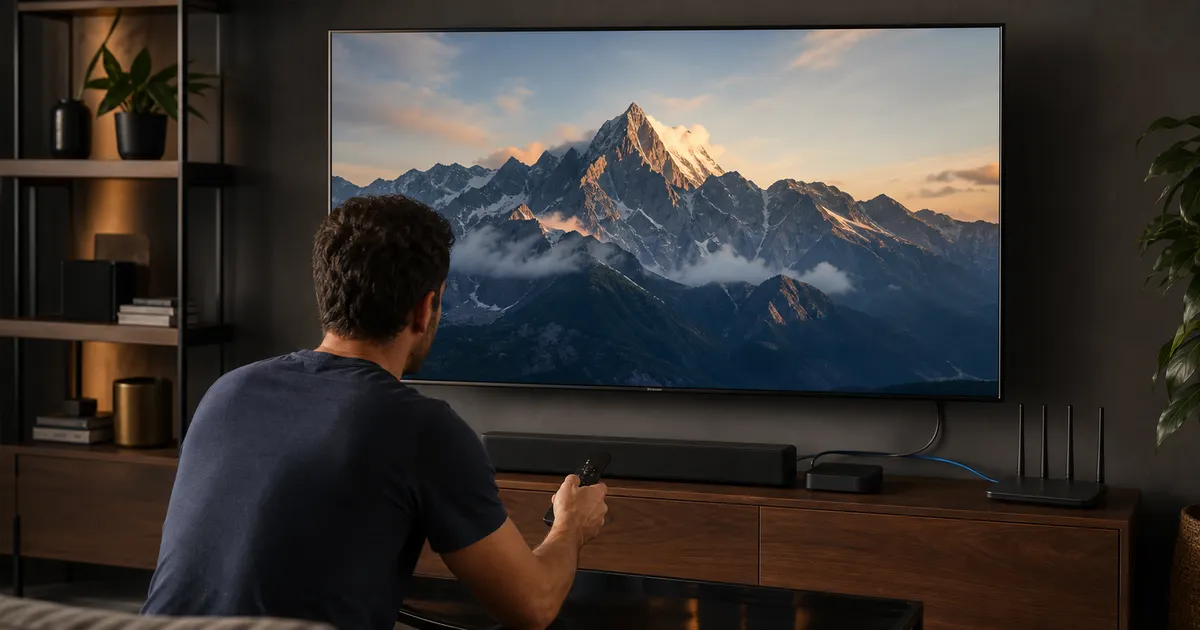
4K is a chain, not a single setting
A television displaying a 4K menu does not prove that the entire stream is 4K. The authorized source, package, delivery bitrate, network, player, device decoder, HDMI path, and display must all support the format. If one link falls back or struggles, selecting a 4K label may produce upscaling, dropped frames, buffering, or no picture.
Begin with availability. Confirm that the selected programming and account support the desired resolution in your location. Not every title or live event is produced or distributed in 4K, and responsible legal IPTV streaming guidance should describe availability realistically rather than promising one resolution everywhere. channelmoa's service overview describes current live TV, VOD, and quality expectations by package.
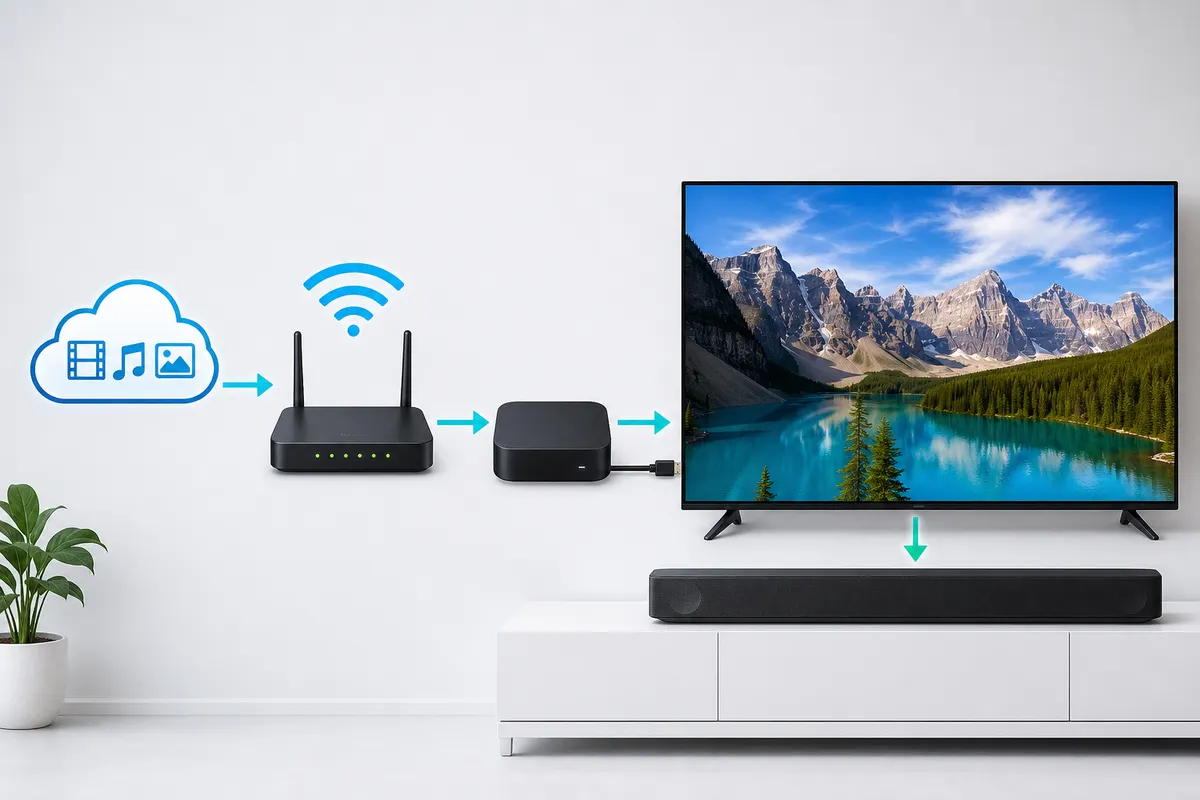
Identify the actual source and output
Where the app provides technical information, compare source resolution, frame rate, codec, and bitrate with the device output. A 1080p source can be sent through a device configured to output 2160p, but that remains an upscale. Upscaling may still look good; it simply should not be confused with native 4K delivery.
Check whether HDR is involved. HDR format support is separate from pixel count and can create washed-out colors or black screens when the device, receiver, cable, and display disagree. Test standard dynamic range first when diagnosing the basic 4K path.
The most helpful questions are practical: does the source appear in 4K, does the device claim to decode it, and does the display actually accept the output? Without those three checks, the 4K label is only a promise.
Plan bandwidth for stability, not the minimum edge
4K bitrate varies by codec, frame rate, content complexity, and provider. Instead of treating one advertised speed number as universal, preserve headroom above the observed stream and account for other household traffic. A connection that barely sustains the media rate may fail whenever a phone starts a cloud backup, a console updates, or Wi-Fi retransmits packets.
Use Ethernet for fixed devices where practical. If Wi-Fi is required, test at the player during busy hours and look for stable results across several runs. Low packet loss and consistent latency matter alongside throughput. Wi-Fi 5 and Wi-Fi 6 can both support strong 4K playback, but neither standard guarantees results if the router is badly placed, the mesh backhaul is weak, or the player has a poor radio position behind the television. The network optimization guide covers router placement, DNS, and QoS settings in more depth.
Test the network under household load
Play authorized 4K content while the home follows a normal routine. If performance fails only when other screens or uploads are active, manage traffic, improve Wi-Fi, or choose a quality that preserves reliability. Do not diagnose with every other device disconnected and assume the result represents daily use.
Compare 1080p on the same app and device. If 1080p is stable while 4K repeatedly fails, the account, source bitrate, network headroom, or decoding path becomes the focus. That comparison is often more useful than a single broadband test because it measures the full route to the screen instead of the plan sold by the ISP.
Check router and node placement before upgrading the internet package. A router hidden in a cabinet, placed behind a television, or linked to a weak mesh node can turn a fast plan into an inconsistent 4K experience at the actual seat.
A real-world test should last long enough to catch temporal changes. A five-minute pass may look fine while the device heats up or the network enters a busier period.
Verify the decoder, HDMI path, and display
The playback device must decode the source codec at the required resolution and frame rate. Marketing that says “4K capable” may apply only to certain codecs or apps. Review device specifications and monitor heat during longer sessions. A compact device can start smoothly and then throttle as temperature rises.
External players add an HDMI cable, receiver, soundbar, switch, and input settings to the chain. Confirm that every link supports the intended mode and that the television input has the appropriate enhanced-format option where required. Replace cables only when symptoms support an HDMI issue, such as dropouts, sparkles, or handshake failures.
Configure the IPTV app conservatively
Use a supported player and begin with default decoder and buffer settings. Enable hardware decoding when it is compatible, then test one sample. Avoid forcing HDR, frame rate, resolution, and a large buffer simultaneously. Each additional override makes it harder to identify the failing link.
Keep the app updated and preserve storage for cache and guide data. Confirm login and package status separately; a decoder cannot repair an account that does not include the selected authorized source.
Check the HDMI and display path conservatively. A 4K television alone does not guarantee a 4K stream if the selected HDMI input is limited, an AVR or soundbar cannot pass the format cleanly, or the app is outputting a different mode than the panel expects.
The right setup is the one that delivers a stable, repeatable result on the exact device and display you own. That is a better target than chasing theoretical maximum settings.
Know when 1080p is the better engineering choice
At typical living-room distances, screen size, eyesight, source quality, and compression affect whether 4K delivers a visible benefit. Stable high-quality 1080p can look better than 4K that repeatedly drops resolution or frames. On phones and smaller tablets, the practical difference may be smaller still while data and battery use remain higher.
Choose 1080p when network headroom is limited, the device overheats, the app decoder is unstable, the display is not truly 4K, or the source is not native 4K. This is not a failed setup; it is matching quality to the weakest real constraint.
The final 4K checklist
Confirm authorized 4K availability, sustained bandwidth with headroom, low-loss Ethernet or strong Wi-Fi, compatible codec decoding, sufficient storage and cooling, a supported IPTV app, capable HDMI components, and a correctly configured 4K display. Test for at least thirty minutes, not just the opening scene.
Document the working resolution, app version, decoder, connection, and display input. That record turns future IPTV setup changes into controlled maintenance instead of guesswork.
Repeat the test after the equipment has warmed up and the household network is busy. Passing only a quiet five-minute demonstration is not enough evidence for dependable 4K viewing.
Use a 4K acceptance test before you trust the setup
A 4K setup should be judged by a short acceptance test rather than by the first few seconds of playback. Use a known item, let it run long enough to reveal heat or network changes, and then switch between content types to see whether the playback path remains stable. The same standard applies whether the setup uses a box, a television, or an external player.
The acceptance test should be simple enough to repeat, because repeatability matters more than a one-time perfect result. A setup that passes the same test on two occasions is more trustworthy than one that looks good only during a brief demo.
What to include in the test
Start with one live item, one VOD item, one menu navigation check, and one pause-resume cycle. That catches the kind of instability that might not appear on a static screen or during a short open. It also gives the user a clear record of what the system can handle.
If the setup fails only after the device has warmed up, the issue is likely thermal or decoder-related. If it fails when the household is busy, the issue is likely network-related. The acceptance test helps reveal the difference.
An end-to-end 4K qualification test
A 4K badge describes resolution, not the reliability of the full viewing chain. Qualify the authorized source, network, decoder, HDMI path, and display as one system.
Confirm the source
A 4K-capable plan, app, or television does not convert an HD program into a native 4K stream. Verify that the specific authorized item and package provide the resolution in your location and that the app exposes it.
Evidence to collect: Use the player's information panel or a known provider label rather than judging sharpness from viewing distance alone. Decision rule: Set expectations by the actual source; upscaling can look pleasant but does not create missing detail.
Budget stable bandwidth
A single peak test ignores protocol overhead, household competition, Wi-Fi retransmission, and bitrate variation during complex scenes. Test repeatedly at the display during normal busy hours and leave comfortable capacity above the provider's stated requirement.
Evidence to collect: Watch a sustained high-quality sample while other ordinary household activity continues and record interruptions or quality drops. Decision rule: Prioritize consistent delivery and low loss over a headline plan speed that never reaches the television reliably.
Validate decoding
Older televisions and inexpensive boxes may output 4K menus yet lack efficient support for the stream's codec, frame rate, or HDR format. Check the exact model specification, update stable firmware, and test hardware decoding with device temperature and audio sync in mind.
Evidence to collect: Dropped frames, heat, audio-only playback, or crashes that follow one device point toward local decoding limits. Decision rule: Use capable external hardware when the internal platform cannot maintain supported high-resolution playback.
Audit the HDMI chain
Receivers, soundbars, switches, ports, and cables each need enough capability for the selected resolution, frame rate, and color mode. Test the player directly on a known compatible television port, then add intermediate equipment back one component at a time.
Evidence to collect: Black screens, brief signal loss, or format warnings during input changes often identify handshake or cable limits. Decision rule: Choose a stable supported display mode instead of forcing an advanced mode through an uncertain chain.
Set the room for visible value
Screen size, seating distance, motion handling, and poor picture processing can matter as much as extra pixels. Use a sensible picture preset, disable excessive sharpening, verify motion preference, and compare from the normal seat.
Evidence to collect: Evaluate detail, compression, motion, color, and audio together on content that genuinely benefits from higher quality. Decision rule: Prefer a stable, well-presented HD stream when marginal 4K produces interruptions or aggressive processing.
Complete an endurance run
A five-minute sample may pass before a device heats up, Wi-Fi conditions change, or memory pressure accumulates. Watch for at least forty-five minutes, switch away and back, seek within on-demand content, and restart the app afterward.
Evidence to collect: Record quality selection, network path, device heat, audio sync, guide response, and whether the login persists. Decision rule: Call the setup 4K-ready only when the complete system remains stable during the way the household actually watches.
A 4K qualification checklist and 1080p decision guide
A 4K readiness check begins with the authorized source. Confirm that the specific program, package, region, and supported app provide the higher resolution. A 4K television can upscale HD, but it cannot restore detail that the source never carried. Next confirm the device codec, frame rate, HDR format, and output capability. Menu resolution is not proof of sustained video decoding, especially on older televisions or inexpensive boxes that advertise 4K output without efficient codec support.
Bandwidth planning needs headroom. Provider requirements vary with codec and bitrate, so use the actual source guidance and test repeatedly at the display during busy hours. Allow room for protocol overhead, bitrate peaks, Wi-Fi retransmission, and other household use. A connection that barely meets an advertised minimum may switch quality or pause during complex scenes. Ethernet is the best comparison; on Wi-Fi, consistency and loss matter more than the highest number from one short test.
Audit the display chain from player to panel. The television port, HDMI cable, receiver, soundbar, and switch must support the selected resolution, frame rate, color, and protection requirements. Test the player directly on a known compatible input, then add equipment back one component at a time. Signal flashes, format warnings, or a black screen during mode changes often identify HDMI negotiation rather than internet buffering. Use certified, appropriately rated cables without paying for unsupported marketing claims.
Choose 1080p when it creates the better complete experience. At a longer seating distance or on a smaller display, the visible gain from 4K may be limited. Stable HD can look cleaner than a high-resolution stream that repeatedly drops quality, overheats the device, or forces aggressive compression. 1080p is also sensible while diagnosing Wi-Fi or decoder limits. Resolve the foundation first, then repeat a long 4K test rather than treating maximum resolution as the only quality measure.
Do not recommend 4K when the source is not native, the account does not include it, the device lacks efficient decoding, the HDMI chain is uncertain, or the network cannot preserve sustained headroom. Complete a forty-five-minute endurance run with normal household traffic, check heat and audio sync, switch away and back, and restart the app. Record the final app, quality, decoder, display mode, and network path so later changes can be traced instead of guessed.
Sources and further reading
Related channelmoa resources
FAQ
How much internet speed does 4K IPTV streaming need?
There is no single universal figure because bitrate and codec vary. Measure the actual source and preserve meaningful headroom for network variation and household use.
Does a 4K television make every stream 4K?
No. It may upscale lower-resolution video. Native delivery requires a 4K source and support throughout the complete playback chain.
Why does 4K start well and buffer later?
Heat-related throttling, growing household traffic, Wi-Fi variation, or insufficient sustained headroom can appear only during a longer session.
Is 1080p sometimes the better choice?
Yes. Stable 1080p can provide a cleaner experience when the source, network, device, display size, or viewing distance limits the benefit of 4K.
Check every link before choosing 4K
Share your display, player, app, and network details with channelmoa to set realistic quality expectations.