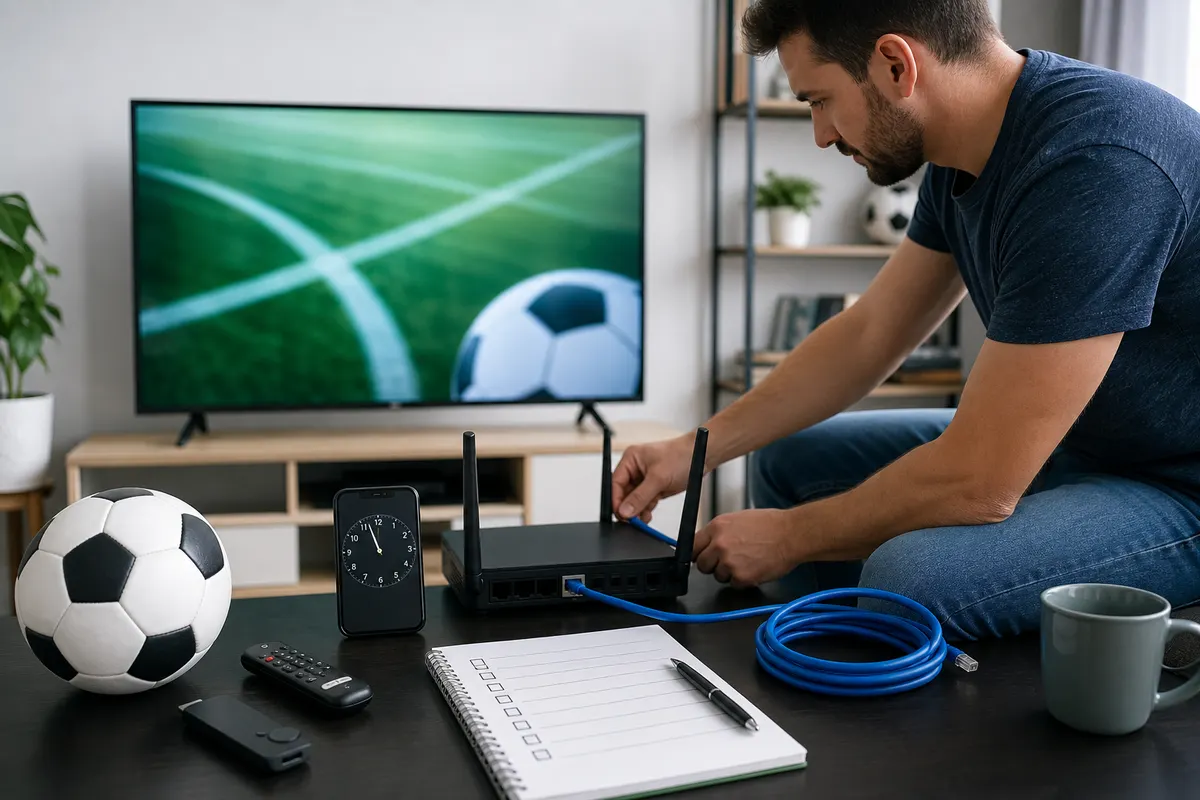
Live Sports Streaming Setup Guide: Account, Device, and Network Checks
Prepare for live sports streaming with authorized-service, account, device, app, network, time-zone, backup, security, and troubleshooting checks.
Published by the channelmoa editorial team. This guide concerns lawful viewing of the men's FIFA World Cup 2026, held from June 11 to July 19, 2026. Rights and platforms varied by territory; readers should use official tournament and authorized local broadcaster information.

| Symptom | Likely layer to verify | Safe first checks | Avoid |
|---|---|---|---|
| Login rejected | Account, credentials, session limit | Confirm official app, status, exact entry, and other active sessions | Reinstalling immediately or sharing the password |
| App unavailable | Store region, device, OS, publisher support | Verify exact model, region, store listing, and official documentation | Unknown downloads or changing region casually |
| All video buffers | Home network, ISP, device, app | Stop large transfers, compare Ethernet, another legal app, and another device | Random DNS or factory reset |
| One match fails | Authorized broadcaster or source incident | Try another item, note time and error, use broadcaster support | Changing the whole home network |
| Wrong start time | Time zone, daylight saving, schedule conversion | Use FIFA schedule and authorized broadcaster listing; verify device clock | Relying on an old social post |
| Black picture with audio | Decoder, format, HDMI path | Try another authorized item, default decoder, direct TV connection | Changing multiple picture settings together |
Confirm the event, schedule, and authorized viewing route
Use this workflow before any important live-sports event. Identify the exact fixture, official start time, viewing country, authorized local broadcaster or platform, package entitlement, device, application, and account owner. Rights and schedules can differ by territory and event, so a working sports subscription does not prove that a particular match is included. Begin with the organizer and rights holder's current information rather than an old social post or an unsourced global list.
The completed men's FIFA World Cup 2026 is a useful dated case study. It ran from June 11 through July 19, 2026 in Canada, Mexico, and the United States, and its distribution relied on territory-specific broadcast partners. The checks in this guide preserve lessons from that event without presenting it as upcoming. For a future tournament or weekly competition, replace every case-study fact with the current organizer, fixture, broadcaster, package, and regional terms.
Record the match, official kickoff time, your time zone, authorized local platform, package, device, application, and account owner. Check the broadcaster's current schedule because studio coverage and stream availability may begin at a different time from kickoff. Verify daylight-saving rules and the device clock. A calendar entry should include the source link and time zone so it remains understandable after travel or clock changes.
Confirm that the selected package lawfully includes the specific match in the viewer's territory. A generic IPTV login does not establish World Cup rights. Ask the provider or broadcaster a precise written question and retain the answer without sharing credentials. If coverage cannot be confirmed, choose a clearly authorized local option rather than treating an unexplained stream as a backup.
Compact pre-event checklist
Verify the official fixture and time zone; identify the authorized local broadcaster; confirm the exact package and subscription status; check the supported device and application listing; update early; sign in; test authorized playback; compare Wi-Fi with Ethernet; stop scheduled downloads; prepare a lawful backup; store support contacts; and protect credentials. Complete the list before event day whenever possible.
Use FIFA pages for tournament dates and fixtures, then follow the rights holder's official service information for local access. FIFA's broadcast partnership information confirms that distribution uses a territory-based network of partners; it does not mean one application is authorized everywhere. Save the page relevant to your location rather than a screenshot forwarded without context.
For travel, confirm both the service terms and destination availability. Hotel Wi-Fi, HDMI access, captive portals, and device policies can differ, but those technical questions come after lawful regional access. Do not use technical tools to defeat territorial rules. Sign out and forget networks before leaving shared accommodation.
Make one household member responsible for the final checklist. Last-minute duplicated changes are common when several people update apps, reset passwords, and move cables independently. Record the working baseline and communicate which items should remain untouched.
Verify subscription status, login, sessions, and account recovery
Open the official supported application several days before viewing and confirm the account is active through the event date. Check the package name, renewal or expiry, payment status, registered devices, simultaneous-session rule, and whether the match requires a separate entitlement. Do not assume that a working menu or another sports channel proves access to the tournament.
Sign out and back in only when you have the correct recovery route. Television keyboards can add spaces or capitalization, so choose the intended login method and enter values once. A username-and-password account, activation code, provider portal, and playlist are not interchangeable. Capture the exact error without exposing the password, private address, payment information, or full device identifier.
Close unused sessions according to the platform's controls. A household may have the account open on a bedroom TV, phone, or borrowed device, causing the main screen to exceed a concurrency limit. Teach viewers to exit normally. Do not share one account publicly or buy an additional session from an unofficial contact.
Test recovery before the support queue becomes busy. Confirm the recovery email or phone, secure that account, and know where official support tickets are opened. Never follow an unexpected message asking for credentials; navigate to the known application or provider site independently. Use a unique password and multi-factor authentication where the service supports it.

Account readiness record
Record the account owner, package, expiry, authorized platform, registered main and backup devices, allowed concurrent sessions, recovery route, support URL, last successful login, and last playback test. Store credentials separately in a password manager. The record should help the household without becoming a credential leak.
If login fails, verify application identity, account status, exact entry, device registration, and session limit before reinstalling. Ask official support whether the error reflects authentication or entitlement. Reinstallation cannot renew an expired package or add missing rights and can destroy a working configuration.
If the catalog loads but the tournament item is missing, verify the package and regional schedule. An authorization or catalog question is different from a network fault. Report the country, package, application version, device, time, and missing listing without changing router settings.
After the event or travel, revoke borrowed devices, remove profiles, and review active sessions. Preserve transaction and support records for an appropriate period, but do not keep passwords in screenshots or shared household notes.
Prepare the supported device, application, picture, and audio path
Choose the most reliable supported screen, not automatically the newest or largest. Confirm the exact television, Fire TV, certified Android TV or Google TV box, phone, tablet, or computer appears in the authorized platform's documentation for your region. Application availability varies by model, operating system, country, and store. Search the verified publisher listing and avoid look-alikes or unknown installation packages.
Install stable operating-system and application updates several days early, then restart and retest. Do not begin optional firmware work shortly before kickoff. Record the working OS and app versions, available storage, login method, remote behavior, and connection. Remove genuinely unused applications if storage is tight, but distinguish cache cleanup from clearing app data, which can erase credentials and preferences.
Test a comparable authorized live sports stream for at least thirty minutes. Observe startup, resolution changes, motion, audio sync, captions, remote response, and heat. A short menu check does not exercise sustained video. Use the same television input, soundbar or receiver, and household traffic planned for the match.
Keep picture and audio settings conservative. Begin with a known accurate or standard picture mode and supported defaults. Aggressive motion processing can create artifacts; audio passthrough can expose receiver compatibility. Change one option at a time using the same test scene. A black picture with audio may reflect decoding or HDMI rather than the account.
Device-specific preparation
For Smart TVs, verify free storage, store region, app support, software version, clock, and remote controls. Do not delete an installed player until confirming it remains in the store. The Samsung and LG setup guide covers model-specific installation and troubleshooting, while the Smart TV mistakes guide addresses storage, DNS, guide timing, and premature resets.
For Fire TV Stick devices, use the recommended power arrangement, allow ventilation, verify Wi-Fi behind the display, and include any supported Ethernet adapter in the rehearsal. For Android or Google TV boxes, verify certification, system updates, storage, decoder behavior, and television-oriented app controls. Use official stores and publisher information.
If the main device is old or inconsistent, test a supported external device or alternate authorized platform before the event. Do not wait for a live failure to discover that an adapter, HDMI input, remote, or account registration is missing. Keep cables and power supplies labeled without writing credentials on them.
For 4K viewing, confirm the authorized source, package, app, decoder, network, HDMI, display, and audio chain. A 4K label on the TV or device does not guarantee the complete path. Stable 1080p may provide a better event experience than a marginal 4K configuration.
Test Wi-Fi, Ethernet, internet headroom, and household traffic
Network preparation is about sustained stability, not the highest speed-test result. Test at the playback device during the same hours as the match. Observe repeated throughput, latency, packet loss where reliable tools are available, and real playback. Include normal household calls, games, backups, and uploads. A phone beside the router does not measure the television behind a wall or metal mount.
Ethernet is a valuable baseline because it removes radio interference and roaming. Connect a known-good cable and confirm the device reports wired service. A TV port may have lower headline speed than modern Wi-Fi yet deliver more consistent playback. If Ethernet succeeds where Wi-Fi fails, focus on placement, interference, band selection, mesh backhaul, or device radio rather than replacing credentials.
For Wi-Fi, move the router or node into a clear position, test suitable bands, and avoid hiding equipment behind the display or inside dense furniture. A strong signal icon does not reveal retransmissions or upstream congestion. If using mesh, ensure the node's backhaul is healthy; placing a node beside the TV cannot repair a weak connection between the node and router.
Leave headroom for bitrate changes and other users without inventing one universal requirement. Codec, frame rate, resolution, audio, and source bitrate vary. Use the 4K requirements guide for the complete signal chain and the buffering guide for structured isolation. Avoid starting large downloads or cloud backups during the match.
A repeatable network rehearsal
Play a comparable authorized live stream for thirty minutes, record interruptions, then repeat over Ethernet or an improved Wi-Fi position. Test another reputable streaming app on the same device and the intended authorized service on the backup device sequentially, respecting session limits. This matrix distinguishes home network, device, application, and source symptoms.
Do not change DNS, enable a VPN, replace the router, clear app data, and update firmware together. A VPN must not be used to bypass regional restrictions and can alter latency or violate terms. Random DNS changes cannot repair weak radio, limited decoding, or a remote source incident.
If all internet services struggle, inspect the home connection and contact the ISP with evidence. If one application fails on every device while other services work, contact the authorized platform. If one match fails while other content plays, report the exact event and time. Scope determines ownership.
Keep a cable long enough for a temporary Ethernet fallback when practical. Test it before storing it. A fallback is useful only when the router port, adapter, device input, and cable have already completed playback successfully.
Build a lawful backup and a match-day runbook
A backup should be independently authorized and prepared, not an unexplained link found after failure. Options may include the rights holder's supported application on a second device, an authorized television broadcast, or another platform included under the viewer's legitimate package. Availability differs by country, so verify the backup through official local information and the applicable account terms.
Register the backup device, install updates, sign in, test playback, confirm power and remote, and understand session limits. Do not run both devices continuously if the account permits one stream. Keep the backup close enough to switch inputs but ventilated and powered safely. A phone can help diagnose the network, yet casting introduces another dependency and should be rehearsed.
Create a runbook with official fixture and time zone, authorized primary and backup, support contacts, device inputs, connection plan, account owner, last test, and a short diagnostic order. Exclude passwords. Share it with the household and identify one person who decides whether to switch, preventing several simultaneous resets.
On match day, complete checks early: device clock, subscription, application start, remote batteries, sound, network, household downloads, and backup availability. Open the authorized stream when the platform permits rather than waiting until kickoff. Avoid optional updates, new applications, router changes, and picture experiments after the successful baseline.
Match-day timeline
The day before, confirm schedule, rights, account, updates, primary and backup playback. Several hours before, check service notices, device storage, power, and network. Thirty minutes before, stop unnecessary transfers, open the official app, confirm audio and picture, and keep support details ready. At kickoff, leave the working setup unchanged.
If traveling, arrive early enough to solve captive-portal and HDMI access issues under property rules. Do not disconnect venue equipment or bypass network controls. A personal mobile connection may be an authorized technical backup only when data terms, coverage, service rights, and platform rules permit it.
For shared viewing, test seating, captions, volume, remote handoff, and accessibility before the audience arrives. Keep cables away from walkways and prevent drinks from reaching power equipment. Reliability includes physical setup and usability, not only bandwidth.
After viewing, close the stream to release sessions, note any incident, revoke borrowed devices, and retain a password-free record. Update the runbook while details are fresh so the next lawful event begins from evidence rather than memory.
Troubleshoot safely without destroying the working baseline
Define where the failure occurs. Can the device reach the internet? Does the official app open? Does authentication succeed? Does the catalog load? Does another authorized item play? Does the match start and then buffer? Does audio work? Each answer points to a different layer. Capture the exact error, device, app version, connection, time zone, and time without exposing credentials.
For a rejected login, check official app identity, account status, exact entry, entitlement, registered devices, and concurrent sessions. For a missing match, verify regional schedule and package. For buffering across all content, stop other traffic and compare Ethernet. For one failing event, try another item and report the match to authorized support. Do not reset the whole television for a source-specific incident.
Restart in order: close and reopen the app, restart the playback device, then restart network equipment only if broader evidence points there and other household users understand the interruption. Reinstall after saving configuration and confirming the verified listing remains available. A factory reset is a last resort for a confirmed device-wide fault because it removes evidence and creates recovery work.
Change one decoder, resolution, audio, or network option at a time and replay the same authorized sample. Keep the change only when it repeats an improvement. Avoid unofficial applications, unknown configuration services, credential-sharing forums, and tools marketed to defeat location controls.

Escalation and account security
Send support the account reference, package, country, device, OS, app version, connection, event, timestamp with zone, error, scope, and completed tests. Redact passwords, private service addresses, payment details, and unrelated personal data. Keep the setup stable while support investigates matching incidents.
Verify support contacts from the official application or known website, not an unsolicited match-day message. Attackers can exploit urgency with fake renewal, password-reset, or alternative-stream links. Navigate independently, use a unique password, protect recovery accounts, and enable multi-factor authentication where offered.
If credentials may be exposed, change them through the official route, revoke sessions, secure the recovery email, contact support, and review payment records. Do not continue testing a compromised secret across multiple devices. Inform household users so they do not restore the old value.
The durable conclusion is a controlled chain: official tournament information, authorized regional coverage, valid subscription, supported app and device, stable network, correct time zone, tested lawful backup, safe runbook, and disciplined troubleshooting. This method cannot guarantee an incident-free event, but it removes avoidable uncertainty without making unsupported access promises.
Preserve the checklist for the next authorized event, but refresh every external fact: fixture, rights holder, package, region, application, device support, and account rules. Reusing the diagnostic order is sensible; reusing old broadcaster or schedule assumptions is not.
Check those facts from primary sources again before every event.
Sources and further reading
Related channelmoa resources
FAQ
Which tournament does this guide cover?
It covers the men's FIFA World Cup 2026, hosted in Canada, Mexico, and the United States from June 11 through July 19, 2026, and preserves a reusable preparation method.
Where can I find the authorized World Cup broadcaster?
Start with FIFA's official tournament and media information, then verify the authorized rights holder's official service in your country. Rights and platforms vary by territory.
Should I use a VPN when a stream is unavailable in my country?
This guide does not recommend bypassing regional restrictions. Use an authorized option for the location and comply with platform and account terms.
When should I test the setup?
Verify rights and account early, install stable updates several days ahead, run a comparable live test, and repeat the final device, network, audio, and backup checks the day before.
Is Ethernet required for sports streaming?
No, but it is a useful stable baseline. Compare actual sustained playback at the viewing device; well-designed Wi-Fi can work while poor placement or interference can fail.
What should I send support during a match-day incident?
Send the device, OS, app version, connection, country, event, timestamp with zone, exact error, scope, and tests. Redact passwords, private addresses, and payment information.
Prepare the authorized viewing path before the next event
Share your country, exact device, supported application, and network type so setup questions can be addressed without sending passwords or bypassing regional rules.