Android IPTV Performance Guide: How to Make Streaming Faster and Cleaner
Improve IPTV on Android by checking your real Android version, storage, and Play Protect certification, then testing hardware vs software decoding and network stability.
Published by the channelmoa editorial team. This article provides general streaming setup guidance and distinguishes device or regional variables where they apply.
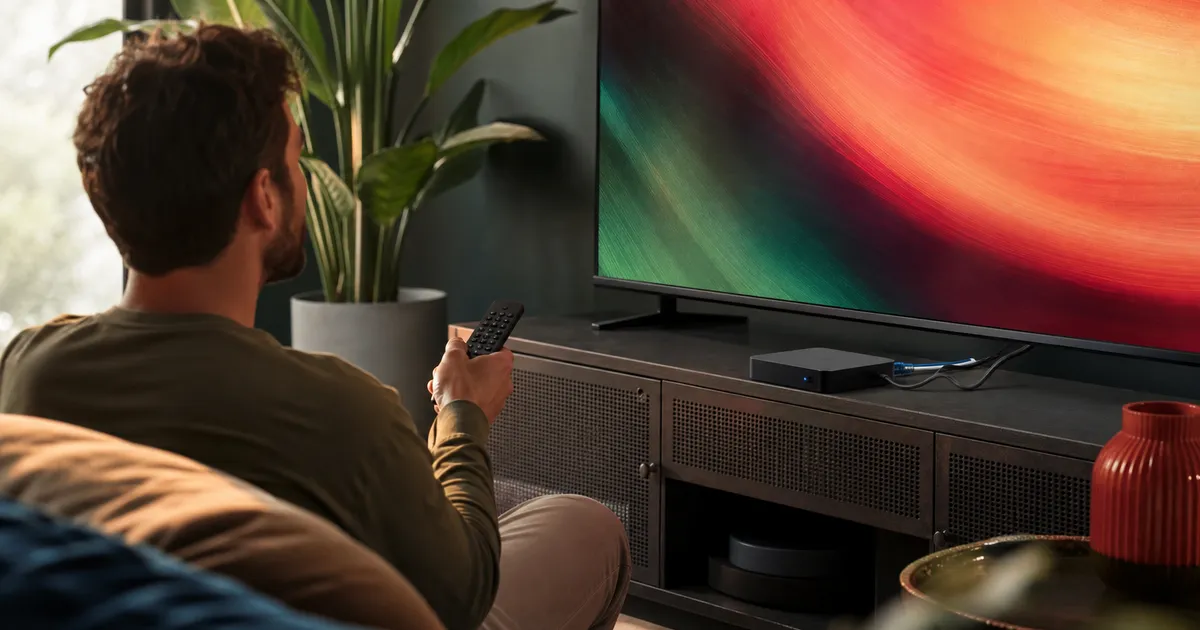
Identify what your Android device actually is
Every fix on this page depends on three facts most owners never check: the Android version, the free storage, and whether the device is Play Protect certified. On a phone or tablet, find the version at Settings, then About phone (or About tablet), then Android version. On an Android TV or Google TV box, the equivalent is Settings, then System (some interfaces label it Device Preferences), then About — the exact wording varies by manufacturer, since Google does not standardize the Android TV settings layout the way it does for phones.
Check storage at Settings, then Storage, on any Android device. For certification, open the Google Play Store app, tap the profile icon, then Settings, then About. Google states plainly what an uncertified device means: such devices "may not be secure" and "may not get Android system updates or app updates." If your box isn't listed as certified, that is a real limit on what any setting here can fix, not a cosmetic detail. Where the device is a television's own built-in Android TV or Google TV system rather than a separate box, storage and login issues there overlap with the Smart TV IPTV setup mistakes guide, which covers the TV-specific quirks this page does not repeat.
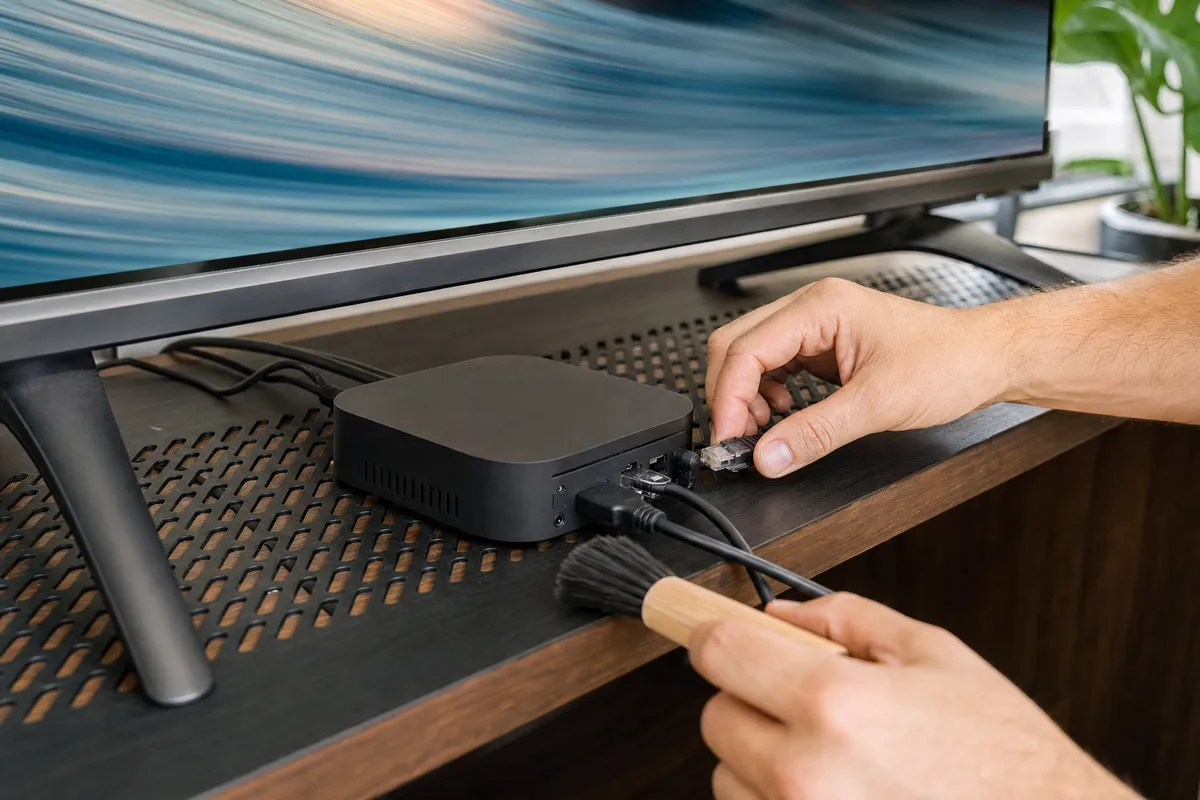
Restart and record a baseline before changing anything
Restart the device and play one authorized item you already know works before touching a setting. Note the launch time, whether the picture holds steady for the first few minutes, and whether the device gets warm. Without this baseline, an unrelated change — a router reboot, an app update — can get credited for an improvement it didn't cause.
Check whether your device decodes video in hardware or software
This is the single biggest factor in whether IPTV playback is smooth or constantly stutters on a low-cost device, and most generic optimization guides never mention it. Hardware decoding uses a dedicated chip built into the device to process video; software decoding falls back to the general-purpose processor, which is slower and produces far more heat under sustained load.
Android's own supported-media-formats documentation requires a device decoder for H.264 since Android 3.0, HEVC (H.265) since Android 5.0, and AV1 since Android 10. That requirement is about which formats a device must be able to play, not about whether it plays them in hardware — a device can technically satisfy Android's HEVC or AV1 decoder requirement entirely in software, which is exactly why a box can list 4K and HEVC support on its packaging while stuttering badly on real 4K HEVC content.
A practical test, since Android has no universal on/off switch for this
Play an authorized item encoded in an older, common format — most live channels and much VOD content still use H.264 — then compare it against a title you know is HEVC or 4K. If the H.264 content is smooth and the HEVC or 4K content runs hot, drops frames, or stutters at the same bitrate, the device is likely falling back to software decoding for the newer codec. That is a hardware ceiling, not a settings problem, on a device this old or this limited.
Where the IPTV player app itself offers a decoder choice in its own settings — separate from anything in Android's system settings — test the alternative on one repeatable sample, compare heat and frame drops, and keep whichever is stable rather than switching back and forth.
The cheap-box reality: specifications you can't take from the packaging
Low-cost Android TV boxes are commonly sold with a listed RAM figure, a "4K" badge, and an Android version that does not match what Settings actually reports once the device is running. This isn't necessarily deliberate misrepresentation by any specific seller — listings get reused and a "4K" badge describes output resolution, not decoding capability at that resolution. The practical response is the same regardless of intent: verify what the device actually reports rather than what was advertised.
The clearest verifiable proxy for this mismatch is the Play Protect certification check above. An uncertified device is a documented signal, not a guess: Google states that such a device may not get system or app updates, which means a performance or security issue on it may never be patched, regardless of what you change here.
What this means for what you can actually fix
An outdated Android version on an uncertified box isn't something a cache clear or a network change repairs — Android's decoder requirements above are keyed to Android version, so a box stuck on an old release may never gain the newer codec support that a firmware update would normally add. If 4K playback specifically is the sticking point, cross-check the device's real output and bandwidth needs against the 4K streaming requirements guide before assuming the account or app is at fault.
None of this means every low-cost box is inadequate — many are properly certified and perform well within their real specifications. It means the specification on the box or listing page is a starting point to verify, never a fact to optimize around.
Manage storage and background apps without making things worse
Uninstall abandoned launchers and duplicate IPTV players, and let pending system and app updates finish before retesting playback. Clear the IPTV app's cache if navigation feels stale, but treat clearing app data as a separate, larger step — it typically removes saved login and preferences, so confirm your account details before using it.
Resist force-closing everything in the recent-apps list as routine maintenance. Android's own task-management design assumes background apps are frozen or suspended rather than actively consuming resources, and repeatedly force-closing and relaunching an app can use more processing than leaving it alone. Reserve force-closing for an app that is visibly frozen or misbehaving, not a daily ritual.
A phone adds one more variable a box doesn't have
On a phone, a battery-saver mode can throttle network or processor activity during playback; check whether it's active if streaming is worse on battery than while charging. On a box, there is no battery mode to check, so the same slowdown points toward heat, storage, or a background download instead.
Get a stable network path to a device that's often hidden behind the TV
Compact boxes are frequently placed directly behind a television, where the display's metal body weakens Wi-Fi more than the same device would experience in the open. Ethernet is the more reliable baseline for a stationary box; confirm the adapter and cable actually support the speed you expect, since some inexpensive hardware limits real-world throughput even when the router is fast.
Where Wi-Fi is the only option, test both the 2.4GHz and 5GHz bands from the device's actual position rather than assuming the newer band is always better — 5GHz carries more data but tolerates walls and distance worse than 2.4GHz.
Test one change at a time, at the hour you actually watch
Change one variable — Ethernet versus Wi-Fi, router position, or band — and replay the identical authorized content each time. A device can post an excellent one-off speed test result and still buffer in practice if interference causes repeated retransmissions that a simple speed test doesn't capture.
Repeat the test after the device has been running for twenty to thirty minutes. A stream that starts smoothly but degrades as the case warms up points toward thermal throttling rather than the network — retest with better airflow before concluding the connection is at fault.
Separate phone and tablet use from living-room box use
A phone or tablet running the same IPTV app can behave very differently from a dedicated box, because the operating conditions differ: battery-saving modes, screen-sleep behavior, and Bluetooth audio affect a phone in ways that don't apply to a box connected directly to a television. If playback is smooth on mobile data but not on the box, the difference points at the box's decoder, storage, or wireless signal rather than at the account.
Test both form factors before blaming the service
Check the supported apps and devices page to confirm which player is recommended for each Android form factor before assuming one configuration works identically on both. A fault that appears only on one device almost always belongs to that device, not the account.
What optimization can't fix
Cache clearing, storage cleanup, and network tuning solve problems that live on the device and its immediate connection. They cannot fix a cause that sits somewhere else entirely.
If the same content buffers on other devices in the household too — not just this Android box — or fails at consistent times of day regardless of what you change on the device, the cause is very likely the internet connection, the router, or the service itself rather than anything covered on this page. Work through the IPTV buffering root causes guide instead of repeating device-level changes that won't touch a network or server-side problem.
If the device fails the Play Protect certification check, or H.264 plays cleanly while HEVC or AV1 content consistently stutters and overheats no matter what you clear or close, the limit is the hardware itself. In that case, compare current options in the best device for IPTV comparison rather than continuing to tune a device that has reached its ceiling. Fire TV Stick owners specifically should use the Firestick setup and optimization guide instead, since Fire OS renames several of the menus described here.
A short order of operations
Restart the app, then the device, then test the network, before reinstalling or clearing app data — reinstalling first can erase the working configuration you'd otherwise use to tell what actually caused the problem.
Keep a short note of the app version, Android version, connection type, and the date of the last clean test. That record is what turns "it got worse" into a specific, comparable change the next time something breaks.
An Android performance tuning sequence
Android devices vary widely even when their menus look alike. Tune from the operating foundation upward, measuring playback after each change so an improvement can be repeated.
Establish device headroom
Low-cost boxes may advertise strong specifications while thermal limits, slow storage, and background services reduce usable performance. Restart, note free storage and memory, remove abandoned software, and let system updates settle before opening the player.
Evidence to collect: Compare cold launch, menu response, and twenty-minute playback before and after cleanup on the same content. Decision rule: Replace hardware that overheats, cannot receive security updates, or repeatedly closes a supported app despite adequate storage.
Choose the decoder deliberately
Hardware decoding is usually efficient, but a device-specific codec fault may show as a black screen, artifacts, or audio-only playback. Record the current mode, test the supported alternative on one known item, restart playback, and watch CPU or heat symptoms.
Evidence to collect: A decoder change should fix a repeatable picture problem without creating sync errors or instability elsewhere. Decision rule: Return to the baseline if the alternative only changes the symptom or increases device heat.
Control background competition
Cloud photo sync, game updates, launchers, VPNs, and vendor utilities can consume network, memory, and processing resources unpredictably. Pause nonessential downloads, close recent apps, disable unnecessary auto-start behavior through normal settings, and retest.
Evidence to collect: Observe whether interruptions align with notifications, update activity, or the device becoming hot after extended use. Decision rule: Do not install aggressive cleaner tools that add advertisements and another permanent background process.
Stabilize connectivity
Compact boxes are often hidden behind a display where the television and cables weaken an already small Wi-Fi antenna. Use Ethernet where possible or reposition the device with a safe extension, then test 5 GHz and 2.4 GHz according to distance.
Evidence to collect: Compare consistency and latency, not merely peak throughput, during the same busy household period. Decision rule: Select the connection with repeatable delivery; the technically newer band is not automatically better through several walls.
Protect power and temperature
Under-rated adapters and television USB ports may boot a device yet become unstable during high-resolution decoding or updates. Use the manufacturer-rated adapter, keep ventilation clear, avoid stacking hot equipment, and inspect cables for intermittent power.
Evidence to collect: Unexpected restarts, USB disconnects, or faults after warming up suggest a physical foundation problem rather than credentials. Decision rule: Correct power and cooling before changing the app, network, or account configuration.
Preserve a known-good profile
Once playback improves, undocumented tweaks accumulate and make a later update difficult to diagnose. Record app version, decoder, display rate, network, storage level, and the date of the successful endurance test.
Evidence to collect: Recheck live and on-demand playback, audio sync, guide refresh, and sign-in persistence after a full restart. Decision rule: When performance changes, compare against this profile and reverse the most recent relevant change first.
An Android box performance checklist for sustained playback
Begin with a cold baseline: restart the Android device, record available storage, close recent applications, and play the same authorized sample for twenty minutes. Note launch time, menu response, heat, dropped frames, and audio synchronization. This separates a persistent limit from accumulated background activity. Cheap boxes may advertise generous memory while using slow storage or unsupported firmware, so real behavior and update availability matter more than the number printed on a product listing.
Hardware decoding sends supported video work to the device's dedicated media engine and is normally more efficient than software decoding. It is not universally correct, because codec profiles and firmware implementations differ. A black picture with audio, block artifacts, or repeatable crashes on one format can justify testing the supported alternative. Change only the decoder, restart playback, and compare the same sample. Return to the baseline if the change increases heat, introduces audio delay, or merely moves the failure.
Cache and storage cleanup should be targeted. Remove unused applications and downloads, allow pending updates to complete, and clear the player's cache only after recording its current behavior. Do not confuse cache with app data: clearing data usually removes credentials, favorites, and settings. Avoid cleaner utilities that remain active, display advertisements, and consume the resources they claim to save. Leave enough free space for guide records, application updates, and temporary playback data rather than operating close to full.
Background applications can compete for memory, processing, and network access. Cloud photo uploads, game patches, automatic store updates, VPN clients, launchers, and vendor utilities may become active after the stream starts. Pause known transfers and use normal Android settings to limit unnecessary auto-start behavior. If interruptions align with notifications or device heat, repeat the test after simplifying the workload. Do not disable security services or install untrusted optimization packages in pursuit of a small benchmark improvement.
For networking, compare the box in its real location with Ethernet and Wi-Fi. Devices hidden behind televisions often have small antennas in a difficult radio environment. A safe HDMI extension or better router placement may help. Use 5 GHz when signal and distance support it; 2.4 GHz can remain steadier through walls despite lower capacity. Record the connection, app version, decoder, display rate, and storage after the successful endurance test so a later update can be compared with a known-good profile.
Sources and further reading
Related channelmoa resources
FAQ
How do I check if my Android box is Play Protect certified?
Open the Google Play Store app, tap the profile icon, then Settings, then About. If the device isn't listed as certified, Google's own guidance states it may not receive system or app updates.
Does HEVC or AV1 support mean my box decodes it in hardware?
No. Android's decoder requirement for a format is separate from whether that decoding happens in hardware. A device can meet the requirement entirely in software, which is slower and runs hotter.
How much free storage should an Android box keep?
There is no universal number, but preserve enough for system and app updates, cache, and EPG data rather than running close to full — check the exact figure at Settings, then Storage.
Should I force-close background apps to speed up playback?
Not as routine maintenance. Android's own app-management design assumes suspended background apps aren't actively consuming resources, and repeated force-closing can use more processing than leaving them alone.
Will clearing cache delete my login?
Clearing cache normally should not, while clearing app data generally does. Confirm the Android prompt and save credentials first.
Build a stable Android baseline
Tell channelmoa your Android model, Android version, and connection type for practical setup guidance.