Firestick IPTV Setup Optimization: Speed, Storage, and App Tips
Identify your Fire TV Stick model, check storage and clear cache the right way, and learn when slow IPTV playback is a device limit instead of a setup fix.
Published by the channelmoa editorial team. This article provides general streaming setup guidance and distinguishes device or regional variables where they apply.
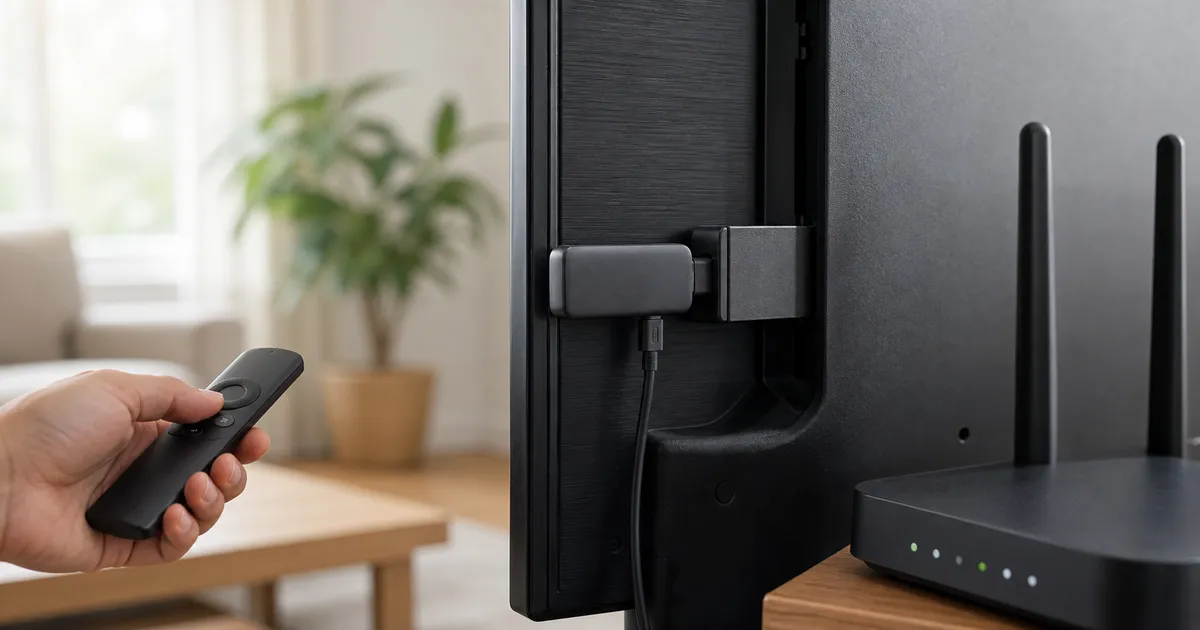
Identify your Fire TV Stick model before troubleshooting
Amazon sells several Fire TV Stick generations at the same time, and they do not share the same hardware. According to Amazon's own device specifications comparison, the Fire TV Stick HD (2026) ships with 1GB of RAM on a MediaTek MT8698D chipset and tops out at 4K resolution at 60Hz; the Fire TV Stick 4K Plus (2025) and Fire TV Stick 4K Max, 2nd Gen (2023) both carry 2GB of RAM and support 4K at up to 120Hz; the Fire TV Stick 4K Select (2025) drops back to 1GB of RAM while still listing 4K at 120Hz.
That gap matters for IPTV specifically, because the app has to decode a live stream, render a program guide, and hold background processes at the same time. A 1GB model that plays a single on-demand title without issue can still stall on a large channel list or a heavier guide that a 2GB model handles without a pause. Check the exact model in Settings, then My Fire TV, then About, before assuming an app problem is the cause.
Unlike a Smart TV or an Android TV box, no current Fire TV Stick has a built-in Ethernet port. A wired connection needs a separate Fire OS-compatible USB Ethernet adapter powered through the stick's own micro-USB port, and not every third-party adapter is supported on every generation, so confirm compatibility before treating Ethernet as an available option.
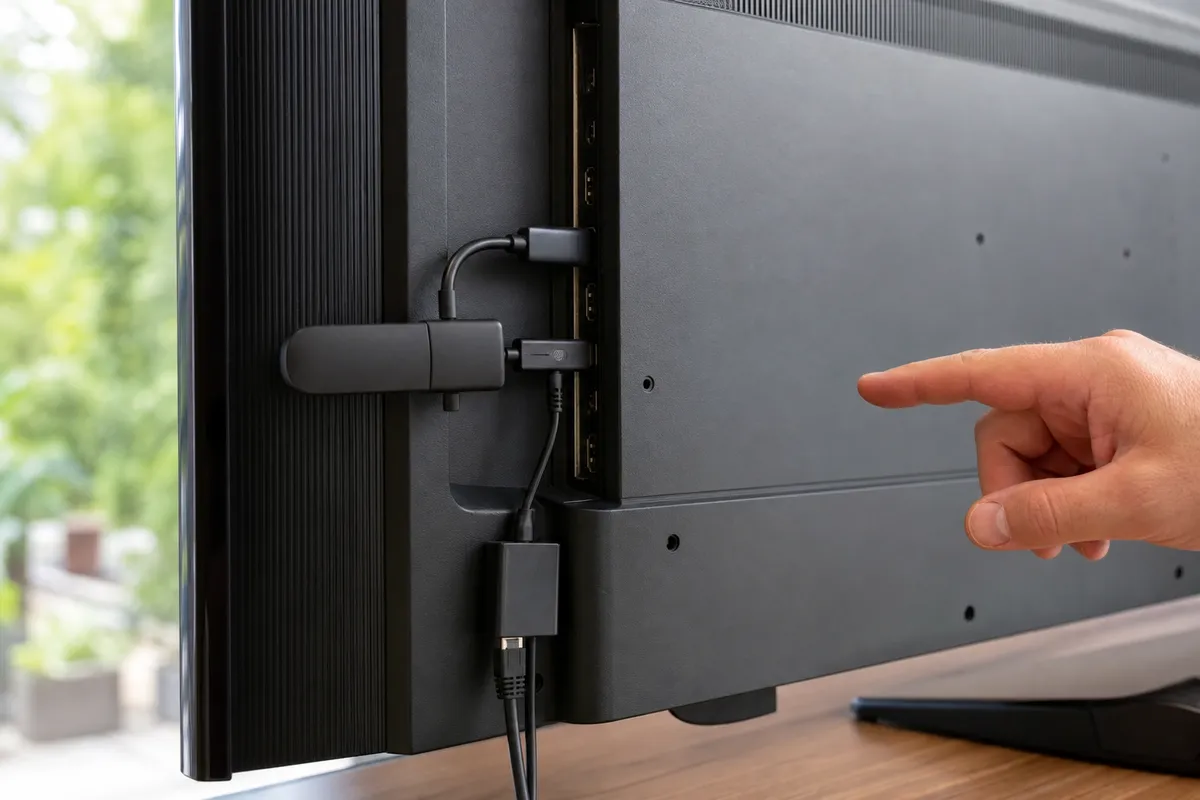
Where to check storage and clear cache
Available storage is checked in Settings, then My Fire TV, then About, then Storage. Amazon's comparison table lists a specific capacity, 16GB, for only one current model, the Fire TV Stick 4K Max, 2nd Gen; it does not publish a storage figure for the Fire TV Stick HD, 4K Plus, or 4K Select. Treat storage as fixed per unit rather than assuming a number, and confirm it on the Storage screen instead.
Cache and app data are separate resets. In Settings, then Applications, then Manage Installed Applications, select the IPTV app to clear its cache without removing login details, or clear application data for a full reset that also removes credentials and preferences. Some Fire OS versions add a shortcut directly under Settings, then Applications, called Clear all Application Caches. Note the login method and any saved favorites before choosing a full data reset.
A Firestick often feels slow once storage runs low, which can also block app and system updates from installing. Clearing cache and removing unused apps is usually more effective than reinstalling the same IPTV player repeatedly.
Design the app around a remote, not a touchscreen
Choose a provider-supported player whose menus, search, favorites, and guide can be reached with directional controls. A technically compatible mobile interface can still be frustrating from a sofa. Test text entry, back-button behavior, category switching, and whether the app exits cleanly without leaving playback active.
Set a reasonable default quality and avoid loading oversized guide windows on a storage-constrained device. If the player supports hardware decoding, compare it with the alternative using one sample rather than toggling during every issue. Stable IPTV for Firestick depends on repeatable settings more than constant experimentation. Households comparing hardware should check supported channelmoa apps and devices; Apple TV owners will find the remote and menu differences covered in the Apple TV and tvOS setup guide, while portal-based boxes are covered separately in the MAG box and Stalker portal setup guide.
Match display settings to the connected TV
If the screen goes black when playback starts but the audio continues, the cause is more likely an HDMI handshake or an output-resolution mismatch than a network problem, since a dropped connection normally interrupts audio and video together. Check the output resolution setting, disable a forced frame-rate or HDR option the display chain does not support reliably, and test the stick in a different HDMI input to rule out a receiver or switch.
Where the included remote has Alexa voice control, voice search can jump to a channel or title faster than the on-screen keyboard, but voice search inside a third-party IPTV app depends on whether that app has registered with Alexa. Test typed search as the reliable fallback rather than assuming voice search will work inside every player.
What optimization can't fix on a Firestick
Cache clearing, storage cleanup, and app updates solve a specific class of problem: a device that is otherwise capable but has accumulated clutter or a stale build. They will not fix a cause that sits outside the stick itself.
If playback is inconsistent at certain times of day, on certain channels, or across every device in the household rather than only the Firestick, the cause is more likely the internet connection, the Wi-Fi path, or server-side congestion than the stick's storage or cache. Work through the categories in the IPTV buffering root causes guide before repeating cache and storage steps that will not change a network or server-side problem.
If the stalling happens specifically on demanding content, such as a live 4K channel or a heavy program guide, and only on a lower-RAM model like the Fire TV Stick HD or 4K Select, the limit may be the hardware itself rather than anything installed on it. In that case, compare the current Fire TV Stick lineup against Smart TVs and Android TV boxes in the best device for IPTV guide rather than continuing to tune a device that has reached its ceiling.
A simple order of operations
Restart the app first, then the device, then test the network, and only reinstall or clear app data if the earlier steps do not help. Reinstalling first can erase the evidence, such as a saved favorites list or login state, needed to tell what actually caused the problem.
Before a major event, confirm the device is updated, the account is active, the app opens, the guide loads, and one live and one on-demand title both play. If all five pass, leave the configuration alone instead of introducing a new variable close to the event.
A living-room optimization routine
Fire TV devices are convenient but sensitive to storage pressure, weak power, heat, and congested Wi-Fi. This routine improves the platform without unsafe downloads or indiscriminate resets.
Start with storage
Applications, caches, thumbnails, and system updates compete for limited internal space and can slow menus before playback fails. Review installed apps, remove unused ones, clear only appropriate cache, restart, and leave meaningful room for updates.
Evidence to collect: Note available space and compare app launch and guide-load times before and after the cleanup. Decision rule: Do not clear application data unless credentials and the supported configuration are safely available.
Use dependable power
A television USB port may provide inconsistent current even when the stick appears to start and navigate normally. Use the rated wall adapter and cable, keep connectors secure, and avoid unverified power accessories behind the display.
Evidence to collect: Reboots, freezes during decoding, or missing peripherals can indicate power instability rather than a streaming account fault. Decision rule: Fix the physical supply before reinstalling software or requesting new credentials.
Move beyond the hidden antenna
A stick placed directly behind a large television can sit in a radio shadow next to interference and warm electronics. Use the supplied safe HDMI extender when appropriate, improve router placement, and compare Ethernet through a compatible adapter.
Evidence to collect: Run repeated evening tests at the device and observe delay and interruptions rather than trusting the Wi-Fi icon. Decision rule: Choose the path that remains consistent under household load, even if another produces a higher isolated speed result.
Simplify the home screen
Background updates and unused applications add resource competition and make the supported player harder for household members to locate. Finish pending updates, remove clutter, place the intended app in an obvious position, and close heavy apps before viewing.
Evidence to collect: After restart, verify remote navigation, search, favorites, guide loading, and that the account remains signed in. Decision rule: Avoid third-party cleaner and launcher packages unless their source, maintenance, and permissions are fully trusted.
Align display behavior
Frame-rate switching, HDR negotiation, receivers, and marginal HDMI connections can cause flashes or black screens mistaken for buffering. Test a direct television connection, supported display resolution, and one display option at a time while keeping the network unchanged.
Evidence to collect: A display fault often preserves audio or app navigation, while a delivery fault usually shows a loading indicator or interruption. Decision rule: Retain automatic or advanced modes only when the entire HDMI chain supports them reliably.
Prepare a reversible recovery
Factory reset is frequently suggested too early and removes the evidence, application, and account needed to identify the original problem. First restart the app, device, and router in order; check account status; then document the exact failure and configuration.
Evidence to collect: A support snapshot should contain model generation, OS and app versions, free storage, connection, time, and symptom. Decision rule: Reset only after safer checks fail and the reinstallation path has been confirmed with legitimate support.
A Fire TV maintenance and pre-event checklist
Storage cleanup should start with the Fire TV application list, not an aggressive third-party cleaner. Remove software nobody uses, clear cache selectively, finish system updates, and restart. Keep enough headroom for thumbnails, guide data, and future updates. Clearing an app's data is a reset that removes login and preferences; it should follow a specific diagnosis, not serve as weekly maintenance. Record free space and compare launch and guide-load time before and after cleanup so the change has a measurable purpose.
Remote-friendly setup matters in a living room. Place the supported player where it is easy to find, verify that directional navigation reaches sign-in, categories, favorites, search, guide, playback controls, and exit, and avoid interfaces that require a touch pointer for essential actions. Test text entry before an account expires or an event begins. A simple household note can identify the correct app and support route without displaying private credentials or portal information.
Power, heat, and physical placement are common hidden limits. Use the recommended wall adapter rather than assuming every television USB port supplies stable current. Keep ventilation clear and use the safe HDMI extender where it moves the stick away from heat and radio obstruction behind the screen. Unexpected restarts or failures after warming up point to physical conditions before they point to an account. Correct those foundations before repeatedly reinstalling the player.
Network and display settings should be tested separately. Compare Ethernet through a compatible adapter with Wi-Fi during normal busy hours. For picture problems, try a direct television input and a supported resolution before changing the network. A black-screen flash during input negotiation can involve HDMI, HDR, frame-rate switching, a receiver, or a cable; a loading spinner after video has started suggests a different layer. One controlled change preserves the evidence needed to tell them apart.
Before a planned live event, update several days early, confirm authorized availability, restart, watch a comparable stream, test account persistence, charge remote batteries, and check household session limits. Freeze optional changes after a successful rehearsal. If trouble appears, capture the exact message and determine whether other apps work before clearing data or resetting the stick. A pre-event checklist should reduce risk and protect legitimate account access, not introduce an unknown application at the last minute.
Sources and further reading
Related channelmoa resources
FAQ
Which Fire TV Stick model do I have?
Check Settings, then My Fire TV, then About, which names the exact model. The model name is also printed on the underside of the stick itself.
Does every Fire TV Stick support Ethernet?
No. No current Fire TV Stick model has a built-in Ethernet port. A wired connection needs a separate Fire OS-compatible USB Ethernet adapter, and compatibility varies by generation.
How much storage does a Fire TV Stick have?
Amazon's own specification comparison lists a capacity, 16GB, for only the Fire TV Stick 4K Max, 2nd Gen. It does not publish a figure for the current HD, 4K Plus, or 4K Select models, so check Settings, then My Fire TV, then About, then Storage for the exact figure on your unit.
Will clearing cache fix buffering that happens on every device in the house?
No. Cache and storage cleanup only address problems specific to the stick itself. Buffering that affects every device in the household points toward the network or server-side load instead.
Make the Firestick setup easier to maintain
Share the device generation, available storage, and app name with channelmoa before selecting a package.