MAG Box & Stalker Portal IPTV Setup Guide 2026: MAC Registration, Portal URL & Troubleshooting
Set up Stalker Portal IPTV on Infomir MAG boxes and Formuler Z devices. Master MAC address registration, portal URL configuration, EPG sync, and fix portal loading errors.
Published by the channelmoa editorial team. This article provides technical setup guidance for portal-compatible set-top box hardware and legitimate media middleware.
| Hardware Tier / Device | Operating Middleware | Authentication Method | Zapping Speed | Portal EPG Performance | Recommended User Type |
|---|---|---|---|---|---|
| Infomir MAG 540 / 520 | Linux Middleware (Stalker/Ministra) | MAC Address Binding (00:1A:79:...) | Ultra-Fast (<0.5 seconds) | Native Server Portal Cache | Dedicated TV viewers wanting a classic STB remote experience |
| Formuler Z11 Pro Max / Z10 | Android + MYTVOnline3 (MOL3) | MAC Binding or Xtream API | Instant Zapping with PIP | Advanced Multi-Source EPG Grid | Power users wanting Android apps plus dedicated STB features |
| Amazon Firestick 4K | Fire OS (Android APK) | M3U URL or Xtream Codes API | Fast (1.0 - 1.5 seconds) | App-Dependent Background Sync | Budget-conscious streaming stick users |
| Certified Android TV Box | Android TV / Google TV OS | Xtream Codes API or M3U | Fast (0.8 - 1.2 seconds) | App-Dependent Local Cache | Users wanting official Google Play Store app ecosystem |
Understanding MAG set-top box architecture and Stalker Portal protocols
For television viewers who demand the immediate, tactile responsiveness of a traditional cable or satellite set-top box, Infomir MAG receivers (including the current MAG 540, MAG 520, and long-standing models like the MAG 322) represent a gold standard in digital television hardware. Unlike general-purpose consumer streaming sticks or Smart TV platforms that run media player applications inside standard mobile operating systems, MAG set-top box hardware operates on a custom-compiled Linux kernel designed exclusively for transport-stream video decoding, physical remote control navigation, and interactive electronic program guides.
At the technical core of the MAG viewing experience is the Stalker Portal protocol, also widely referred to as Ministra middleware. Rather than requiring users to download heavy static playlist files, parse multi-megabyte XML files, or type lengthy usernames and passwords using an awkward onscreen keyboard, MAG set-top boxes establish a direct server-client handshake with middleware servers using the device's unique physical Media Access Control (MAC) address.
This architecture delivers distinct operational benefits. Because the Linux kernel executes C++ middleware instructions directly at the hardware abstraction layer, system memory overhead remains minimal—typically utilizing less than 250MB of RAM out of the device's 1GB or 2GB DDR4 allocation. There are no background operating system services, push notifications, or third-party app updates competing for CPU clock cycles. For viewers preparing a dedicated set-top box setup, channelmoa provides portal-compatible service infrastructure with simple MAC address registration and comprehensive device guidance.
Furthermore, Linux-based MAG boxes utilize specialized hardware demuxers and dedicated H.265/HEVC video decoding chips that process video streams directly into HDMI video buffers. This hardware-level pipeline bypasses the software rendering stages required by generic Android media players, resulting in pristine picture quality, accurate color space reproduction, and zero audio-video synchronization drift even during long continuous broadcast sessions.
For household members who prefer a classic television viewing experience—complete with dedicated numeric channel keys, full-function infrared remotes, and instant channel info banners—the MAG hardware ecosystem provides an uncompromised broadcast feel that software applications on budget HDMI dongles simply cannot recreate.
In commercial hospitality and hospitality streaming environments, Infomir set-top boxes are widely deployed specifically because their firmware can be locked to remote portal servers, preventing accidental modification by guests or non-technical family members.
Key structural differences: MAC address binding vs API logins
Understanding how Stalker Portal authentication operates is essential before setting up your receiver. When a MAG set-top box completes its initial boot sequence, its internal Linux firmware reaches out over your local network to the specific Portal URL defined in system settings. The device transmits an HTTP request header containing its physical network interface MAC address—a 12-digit hexadecimal handle that permanently begins with Infomir's official manufacturer prefix `00:1A:79:XX:XX:XX`.
Upon receiving this handshake, the middleware server cross-references the MAC address string against its active subscriber database. If the MAC address is authorized, the server returns an interactive HTML5/JavaScript portal interface customized for the viewer's account. This interface displays categorized channel groups, Electronic Program Guide (EPG) grids, catch-up TV archives, and video-on-demand libraries directly inside the hardware's native display buffer.
Because channel indexing, schedule mapping, and account authorization are handled server-side prior to video playback, initial boot times and channel zapping speeds are extraordinary. Switching between live channels on a properly configured MAG 540 typically takes less than 0.5 seconds, delivering a seamless living-room experience that software media players running on budget hardware struggle to match. To explore our full set-top box hardware compatibility options, visit our dedicated IPTV set-top box setup options hub.
In contrast to Xtream Codes API logins—which require client applications to download and store local SQLite database files containing tens of thousands of channel records—Stalker Portal middleware dynamically queries categories as you browse. This server-side architecture eliminates local storage strain, preventing the application crashes and out-of-memory errors that frequently affect low-storage streaming sticks.
Additionally, Stalker middleware supports advanced interactive television features such as server-side parental control locks, remote channel list refreshes, automated system messages from provider administrators, and integrated interactive VOD subtitle rendering without requiring client-side plugin installations.
When a provider updates category structures or adds new channel packages, those updates appear instantly in your MAG portal grid without requiring manual app restarts or forced EPG re-downloads.
Deconstructing the MAC address registration process
Because Stalker Portals rely on hardware-level device identification, submitting your exact physical MAC address to your service provider is the single most critical step during subscription activation. A single mistyped character in the 12-digit hexadecimal address will prevent the server from authorizing your device.
Your MAG box MAC address is printed on a white barcoded label on the bottom casing of the receiver. It is formatted as six pairs of characters separated by colons (e.g., `00:1A:79:4A:2B:C8`). You can also locate the MAC address inside the device firmware settings by navigating to Inner Portal -> Inner System Settings -> Device Info.
It is important to understand that the MAC address functions as both your account login ID and your physical device security token. When your line is activated, the middleware server locks your subscription to that specific 12-digit hardware identifier, creating an exclusive connection binding.
Every network interface card manufactured globally is assigned an Organizationally Unique Identifier (OUI) by the IEEE. Infomir's official manufacturer OUI block is `00:1A:79`. Any legitimate MAG set-top box hardware produced by Infomir will bear a MAC address beginning with these first six characters, giving service providers an instant verification check.
When submitting your MAC address for service provisioning, always double-check whether your provider requires colon separators (`00:1A:79:XX:XX:XX`) or raw character strings (`001A79XXXXXX`). Maintaining formatting accuracy avoids unnecessary delays during initial line setup.
It is helpful to take a clear smartphone photo of the barcode label on the bottom of your set-top box when ordering a subscription. Having the physical label visible prevents confusion between similar-looking characters like the number zero (`0`) and the uppercase letter `O`.
Avoiding MAC collision errors and line suspension
When inspecting your device details, ensure you distinguish between your receiver's primary Ethernet MAC address and its secondary Wi-Fi MAC address if your MAG box includes built-in wireless hardware. Infomir MAG set-top boxes assign distinct MAC addresses to physical network interfaces. Stalker Portal servers almost universally require the primary Ethernet MAC address (`00:1A:79:...`). Submitting the secondary wireless MAC address when your provider expects the primary wired address will cause authorization failures.
Furthermore, attempting MAC spoofing—copying a MAG box MAC address into third-party computer software or unapproved mobile apps—can trigger automated security locks on the middleware server. Modern Stalker servers validate hardware signature handshakes alongside the MAC address string. If the server detects a mismatched hardware signature or concurrent connection attempts from different geographical IP blocks using the same MAC address, it will issue a automatic 'STB Blocked' command to protect account integrity.
If you plan to use multiple set-top boxes across different rooms in your home, confirm your subscription plan supports multi-room MAC registration. Each physical receiver must be registered with its own unique MAC address entry on the server panel. If you are comparing subscription packages for portal-based viewing, reviewing our channelmoa subscription package options ensures your plan includes proper multi-device authorization.
Should you need to replace a damaged set-top box or upgrade to a newer MAG 540 model, notify support before connecting the new hardware. Provider administrators must update your registered MAC address entry in the server management panel to transfer your subscription line to the new physical receiver.
Never attempt to share a single portal MAC registration across multiple physical boxes simultaneously. Stalker middleware enforces strict single-session concurrency rules; secondary connection attempts on an active line will instantly displace the primary stream or lock the account until administrative reset.
Keeping your MAC registration records organized ensures smooth account renewals and prevents accidental line overwrites when managing multiple devices across family accounts.
Step-by-step Stalker Portal URL configuration on MAG boxes
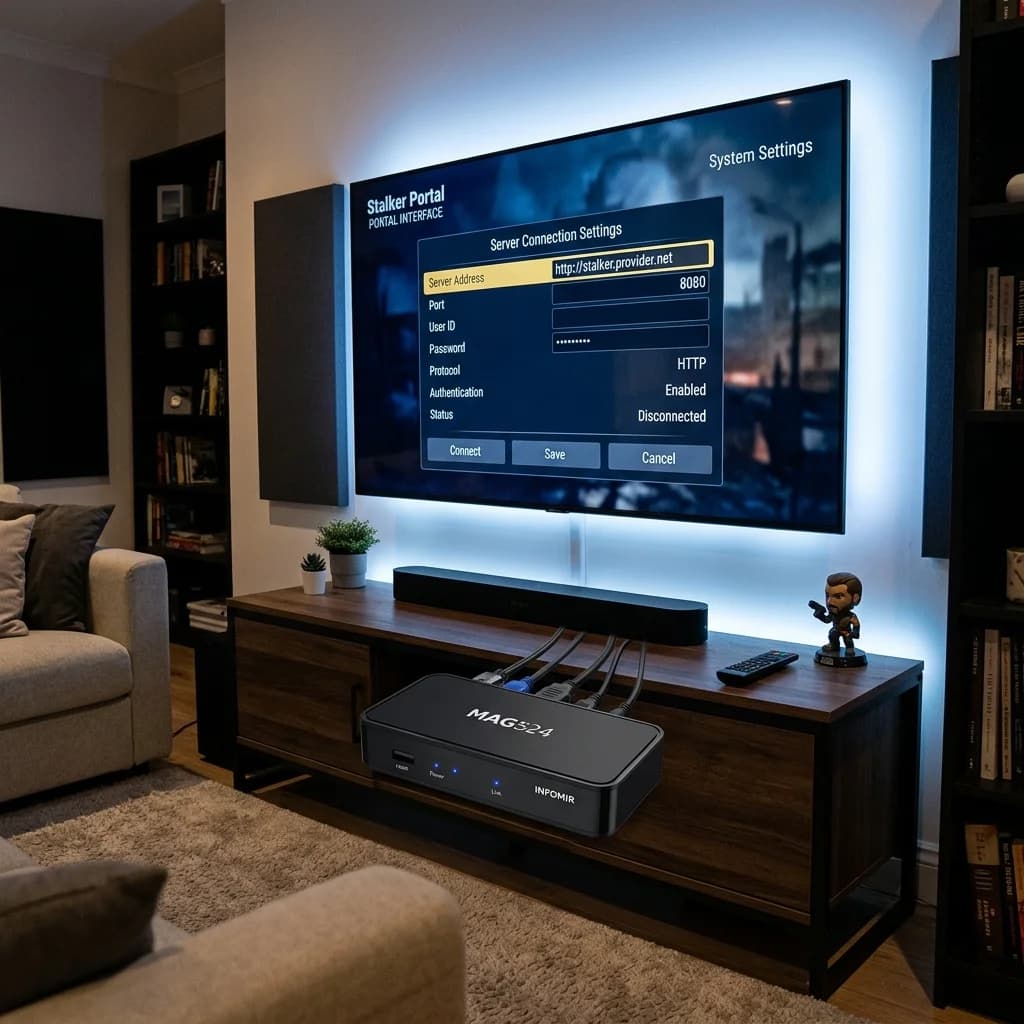
Once your subscription line has been registered with your service provider using your device MAC address, configuring the Portal URL on your MAG box takes less than two minutes. The process is performed inside the Inner Portal system settings menu before the main TV interface loads.
Follow this step-by-step sequence to enter your server connection details correctly on Infomir MAG 520, MAG 540, MAG 420, and related Linux receivers.
Before starting, connect your MAG box to your television using a high-speed HDMI cable, plug in the physical Ethernet cable connected to your home router, and ensure your MAG remote control has fresh batteries.
The Inner Portal represents the device's native Linux configuration environment, operating independently of any remote server URL. From this offline interface, you can manage network adapters, calibrate video display output, update device firmware, and store up to two distinct Stalker Portal server addresses.
Having the ability to store two portal URLs is particularly useful for viewers who maintain a primary television package alongside a secondary backup service line, allowing instant switching between portals from the system menu.
Ensure your MAG remote control is set to TV/STB mode so directional arrow keys and virtual keyboard buttons respond accurately while entering server addresses inside system text fields.
Navigating the Inner Portal system settings menu
Step 1: Open the Inner Portal System Menu. Disconnect the power cable from the back of your MAG box, wait 5 seconds, and reconnect it. As the device boots up and displays the initial Infomir splash screen, press and hold the 'Gear / Setup' button on your MAG remote (or press the 'Menu' button on older remote models) to interrupt automatic portal loading and enter the Inner Portal main screen.
Step 2: Access Portal Server Settings. From the Inner Portal menu, use the remote arrow keys to highlight 'System Settings' and press OK. In the System Settings sub-menu, select 'Servers', then choose 'Portals'.
Step 3: Enter Portal Name and URL. In the 'Portal 1 Name' text box, type a clear handle such as `channelmoa HD`. In the 'Portal 1 URL' text box, type the exact server web address provided by your service provider (e.g., `http://stalker-domain.com:8080/c/`). Pay strict attention to protocol (`http://` vs `https://`), port numbers (`:8080`), and trailing slashes.
Step 4: Save and Restart. Press the 'OK' button on your remote control to save your entered portal parameters. Press the 'Exit' button twice to return to the Inner System Settings menu, then select 'Restart Portal' or cycle device power. Upon rebooting, the MAG box will contact the server URL, authenticate your physical MAC address, and load your full interactive television interface. For broader hardware platform tradeoffs, consult our best device for IPTV 2026 guide.
If your entered Portal URL uses an uncommon port number or requires custom server sub-directories (such as `/c/` or `/stalker_portal/`), verify that the path is typed exactly as provided. Leaving out a required trailing slash or entering `https://` when the server requires `http://` will cause portal connection timeouts during startup.
Pressing the KB button on your MAG remote toggles an onscreen QWERTY keyboard, making it easy to enter complex domain URLs, special characters, and port numbers without mis-keying entries.
Configuring Formuler Z & MYTVOnline3 for portal viewing
Formuler Z-series receivers (including the Formuler Z11 Pro Max, Z10 Pro, and Z Nano) are highly popular hybrid set-top boxes that combine an Android OS foundation with Formuler's proprietary MYTVOnline (MOL2 / MOL3) television application. MYTVOnline delivers the ultra-fast zapping speeds and cable-style grid interface of dedicated MAG set-top boxes while allowing users to access Android apps from the Google Play Store.
MYTVOnline3 is specifically engineered to support Stalker Portal MAC address connections alongside traditional Xtream Codes API and M3U playlist formats.
Because Formuler devices operate on Android, they generate a custom virtual MAC address (`00:1A:79:XX:XX:XX`) inside the MYTVOnline app settings specifically designed for Stalker Portal middleware compatibility.
The Formuler hardware platform provides a compelling bridge for power users who want the physical remote control navigation and instant channel zapping of a MAG box, but also require access to modern streaming applications like Netflix, YouTube, or web browsers on the same physical box.
Formuler's advanced Bluetooth remotes feature programmable hotkeys, voice search capabilities, and TV control sync, creating an exceptionally refined living-room environment.
In addition, Formuler hardware supports micro-SD expansion cards and USB 3.0 storage drives, allowing viewers to pause live TV streams and schedule local DVR recordings directly from the MYTVOnline guide grid.
Setting up a Stalker Portal connection in MYTVOnline3
Step 1: Launch MYTVOnline3. Open the MYTVOnline3 app from your Formuler home screen. On initial launch, select 'Add Content' or open the main menu and select 'Content Sources'.
Step 2: Select Stalker Portal Mode. Choose 'Add Portal'. The app display will show your Formuler device's unique ID and custom MAC address (formatted as `00:1A:79:...`). Copy or record this exact MAC address string and provide it to your subscription provider for line registration.
Step 3: Input Server Parameters. In the Portal Nickname field, enter `channelmoa MOL3`. In the Server Address field, paste your provider's Stalker Portal URL (`http://stalker-domain.com:8080/c/`). If your provider requires secondary authentication, toggle Digest Authentication ON and enter your assigned User ID and Password.
Step 4: Connect and Sync. Select 'Connect'. MYTVOnline3 will initiate a server handshake, download category indices, sync Electronic Program Guide data, and render a modern television interface complete with Picture-in-Picture (PIP) live channel previews, custom channel sorting, and multi-channel recording options. To compare portal protocols with standard M3U playlists, read our M3U & Xtream Codes API setup guide.
Formuler's MYTVOnline3 software includes advanced features such as multi-source EPG aggregation, recording scheduling to external USB hard drives, channel grouping customization, and cloud backup of user settings, making it one of the most powerful portal clients available.
Enabling the 'Single Connection Mode' setting inside MYTVOnline portal preferences ensures that background EPG sync tasks do not create secondary stream requests, protecting single-connection subscription lines from accidental server blocks.
Optimizing MAG box video buffer, video output, and portal EPG
To achieve maximum playback stability, fluid motion during live sports, and razor-sharp picture quality on Infomir receivers, fine-tuning your device's video display resolution, auto-frame-rate matching, and playback buffer parameters inside Inner System Settings is strongly recommended.
Improper video display settings can cause motion judder on high-framerate channels or result in unexpected black-screen playback errors when tuning into 4K or 1080p 60fps streams.
Taking five minutes to adjust system buffer lengths and display settings eliminates common playback friction before it affects your daily viewing.
Display calibration on Linux MAG set-top boxes differs from standard Android TV boxes. Because MAG firmware communicates directly with connected HDMI displays using EDID handshakes, setting static video resolution parameters prevents unnecessary HDMI handshake negotiation delays when switching between HD and 4K channels.
Enabling native Auto-Frame-Rate (AFR) matching ensures that 50Hz European sports broadcasts play smoothly on 60Hz North American televisions without micro-stutter or frame skipping.
Tuning audio downmix settings also prevents silent stream errors when switching between 2.0 stereo news channels and 5.1 surround sound movie channels.
Configuring Graphic Resolution and Buffer Length
Adjust Video Output Resolution: In Inner System Settings -> Video, set 'Graphic Resolution' to `1920x1080` (1080p). Setting Graphic Resolution higher than 1080p can cause system UI menus to feel sluggish on budget MAG hardware without improving actual stream video resolution. Set 'Auto-Frame-Rate (AFR)' to `Enabled` so your MAG box automatically adjusts your television's display refresh rate (50Hz vs 60Hz) to match the incoming broadcast stream.
Tune Playback Buffer Size: In Portal Settings -> Video -> Buffer Length, adjust the buffer window based on your local home network stability. For direct wired Ethernet connections, a buffer length of 500ms to 1000ms delivers sub-second channel zapping. If your home network experiences occasional wireless jitter, increase the buffer length to 2000ms (2 seconds) to absorb packet delays.
EPG Cache Refresh: If program guide descriptions stall or display empty rows, navigate to Portal Settings -> EPG -> Clear EPG Data. Select OK and restart the portal to force a clean XMLTV schedule download from the server middleware. For general network diagnostic steps, read our IPTV buffering root causes guide.
Audio Passthrough Configuration: In Inner System Settings -> Sound, set Digital Audio Output to 'HDMI Bitstream' or 'Raw Passthrough' if your MAG box is connected to an AV receiver or soundbar supporting AC3, EAC3, or Dolby Digital decoding. If connected directly to TV speakers, keep output set to 'PCM Downmix' to prevent missing audio tracks on high-definition cinema channels.
Regularly clearing system log files and resetting local EPG databases every few months ensures that device flash storage remains responsive and channel navigation menus load without delay.
If your MAG box is connected through an HDMI switcher or legacy audio receiver, verify HDCP 2.2 compliance across all intermediate cables to prevent HDCP handshake black-screen errors on high-resolution channels.
Diagnosing and fixing common MAG box portal errors
Even with correct setup settings, set-top box portal connections can occasionally encounter boot interruptions, server handshake alerts, or network timeout screens. Knowing how to interpret specific error screens speeds up troubleshooting without requiring unnecessary support escalations.
Below is a step-by-step diagnostic workflow covering the four most frequent portal alerts encountered on Infomir MAG and Formuler hardware.
Keep this diagnostic sequence handy whenever setting up a new set-top box or transferring your service line to replacement hardware.
Systematic diagnosis requires isolating network connectivity from server-side authentication. By testing network pings, inspecting physical cabling, and verifying portal URL paths in logical sequence, most portal loading errors can be resolved in under five minutes without resetting device software.
Understanding the difference between Inner Portal boot errors (local hardware/network) and Outer Portal server messages (account authorization) saves significant troubleshooting time.
A systematic 5-minute troubleshooting flow for portal alerts
1. 'Your STB is Blocked / Call Your Provider': This alert indicates that the Stalker server rejected your device MAC address. Verify that your subscription term is active. Confirm that the physical MAC address on your device label matches the MAC address registered on your provider's panel exactly without typos or missing colons.
2. 'Page Loading Error / Stuck on Yellow Bar': This alert occurs when the MAG box cannot reach the specified Portal URL over your home network. Verify that your physical Ethernet cable is securely connected and that your home router has active internet access. Check the Portal URL for missing colons (`http://`), wrong port numbers (`:8080`), or mistyped domain names.
3. 'Authentication Failed / Enter Login & Password': Certain Stalker servers require secondary Digest Authentication in addition to hardware MAC address binding. If this prompt appears, contact your service provider to obtain your secondary portal User ID and Password fields.
4. Intermittent Playback Freezing or Stuttering: If live streams freeze repeatedly on a MAG receiver, test a temporary direct Ethernet cable connection from your router to rule out Wi-Fi interference or Powerline adapter degradation. For comprehensive network diagnostic instructions, read our IPTV buffering root causes guide.
5. 'Firmware Version Incompatible / Update Required': If your MAG box displays a firmware update warning upon connecting to a Stalker Portal, open Inner System Settings -> Software Update -> Autoupdate -> Update (F2). Allow the device to download official Infomir kernel updates to ensure compatibility with Ministra 5.6+ server security protocols.
6. Black Screen with Audio Playing: If audio plays clearly but video displays a black screen, open Inner System Settings -> Video and change Video Output Mode from Auto to a fixed resolution like 1080p-60Hz to resolve HDMI handshake mismatch with your television.
Pre-purchase MAG box checklist and maintenance best practices
Before purchasing an Infomir MAG set-top box or renewing a portal subscription line, reviewing a hardware readiness checklist ensures your receiver, display equipment, and home network infrastructure are fully optimized.
Regular software maintenance prevents system slowdowns and keeps your Linux firmware operating at peak performance throughout the device's useful operating life.
Follow these practical maintenance rules to protect your hardware investment and preserve fast channel switching speeds.
Investing in genuine set-top box hardware and keeping installation environment clean guarantees years of reliable television viewing.
Understanding manufacturer warranty terms, power supply requirements, and storage limits ensures your hardware operates without unexpected failures.
Keeping your receiver firmware updated and preserving setup documentation makes system troubleshooting straightforward if network changes occur.
Maintaining set-top box performance over its operating life
Verify Hardware Authenticity: Purchase genuine Infomir MAG receivers from authorized distributors to avoid clone devices with unmaintained, insecure third-party firmware.
Keep Firmware Updated: Periodically check Inner System Settings -> Software Update -> Auto Update to download and install official Infomir Linux security patches and video decoder updates.
Ensure Adequate Thermal Ventilation: MAG receivers feature compact fanless enclosures. Place your set-top box in an open, well-ventilated space rather than inside an enclosed cabinet to prevent thermal throttling during long viewing sessions.
Retain Non-Sensitive Setup Notes: Keep a secure record of your Portal URL, primary MAC address, and provider support contacts. To explore channelmoa's broad range of streaming services, visit channelmoa streaming services.
Use Quality Power Supplies: Infomir receivers require stable 12V DC power inputs. Using cheap aftermarket power adapters can cause unexpected system reboots, portal loading failures, or corrupted flash storage during power fluctuations.
Perform Seasonal Dust Maintenance: Gently use compressed air to clear ventilation slots on your MAG box every six months to prevent dust accumulation that can impair passive thermal cooling.
Related channelmoa resources
FAQ
What is a Stalker Portal on a MAG box?
A Stalker Portal (Ministra middleware) is a server-side interactive television environment that authenticates set-top boxes using their unique physical MAC address without requiring manual file entry.
Where do I find my MAG box MAC address?
Your MAC address is printed on a white sticker on the bottom of your MAG receiver and is also displayed in Inner System Settings -> Device Info. It always starts with 00:1A:79.
What does 'Your STB is Blocked' mean?
This error means the Stalker Portal server did not recognize or authorize your device MAC address. Check for typos in your registered MAC address or verify that your subscription is active.
Can I use an M3U playlist on a MAG box?
MAG set-top boxes are designed primarily for Stalker Portals. However, some newer MAG models running updated Linux firmware allow importing M3U URLs via system player settings.
Do Formuler Z devices support Stalker Portals?
Yes. Formuler Z receivers running MYTVOnline (MOL2 / MOL3) support Stalker Portal MAC address connections alongside Xtream Codes API and M3U playlists.
How do I fix a MAG box stuck on a yellow loading bar?
A yellow loading bar indicates that the device cannot reach the Portal URL. Double-check your network cabling, verify your router internet access, and confirm your Portal URL path.
Need help registering your MAG box MAC address?
Contact channelmoa support on WhatsApp with your exact receiver model and MAC address for portal connection assistance.