M3U Playlist & Xtream Codes API Setup Guide 2026: Syntax, EPG Integration & Error Fixes
Learn the technical differences between M3U playlist URLs and Xtream Codes API endpoints. Master credential syntax, EPG XMLTV setup, and fix authorization, 404, and parsing errors.
Published by the channelmoa editorial team. This article provides technical guidance on media playlist formats and API endpoints for legitimate IPTV applications.
| Feature / Parameter | Static M3U File / URL | Extended M3U_Plus URL | Xtream Codes API Endpoint |
|---|---|---|---|
| Data delivery format | Monolithic plain text file (.m3u / .m3u8) | Extended text file with metadata tags | JSON-REST dynamic server query |
| Initial load overhead | High (downloads entire database) | High (downloads entire database) | Minimal (fetches index & category on demand) |
| Authentication type | Token appended in stream query string | Token appended in stream query string | Digest / session login (Server, User, Pass) |
| EPG (TV Guide) integration | Requires separate XMLTV URL link | Requires separate XMLTV URL link | Native, automatic server-side sync |
| VOD metadata & series posters | Basic string titles only | Limited category tags | Full poster art, plot summaries, & season grouping |
| Recommended hardware | Legacy hardware, VLC, custom players | Smart TVs with limited memory | Modern Smart TVs, Firestick 4K, Android TV, Apple TV |
Understand the fundamental technical difference between M3U static URLs and Xtream Codes API
When configuring an IPTV application on your Smart TV or streaming device, the initial choice between an M3U playlist URL and an Xtream Codes API connection dictates your daily viewing speed, channel organization, and program guide accuracy. While both methods deliver high-definition live television and video-on-demand streams over HTTP/HTTPS protocols, their underlying data architectures are fundamentally distinct. Understanding this technical boundary prevents unnecessary buffering, playlist parsing failures, and interface lag.
An M3U playlist is essentially a text-based index file containing stream locations and basic channel metadata. When your player opens an M3U URL, it must download and parse the entire file—which can contain tens of thousands of lines—before rendering the channel list on your screen. In contrast, the Xtream Codes API establishes a dynamic server-client query model. Rather than downloading a giant static file, the player sends lightweight JSON requests to the server, retrieving category headers, channel groups, and Electronic Program Guide (EPG) data only as you navigate through the interface. If you are preparing your streaming setup, exploring our IPTV apps hub provides a foundational overview of supported media players.
Key structural differences: Static text parsing vs dynamic API endpoints
Static M3U playlists place the computational processing burden on your client device. A Smart TV or budget streaming stick with 1GB or 2GB of RAM can freeze or crash when attempting to parse a 15MB plain-text playlist file into memory upon startup. If a channel URL changes or a new channel is added on the server side, the static M3U file must be re-downloaded completely to reflect the update.
Dynamic Xtream Codes API connections distribute processing back to the streaming server. Your client app authenticates via three simple inputs: the Server URL (host and port), Username, and Password. Once authenticated, the server returns structured JSON dictionaries containing categorized lists. Category navigation occurs instantaneously because the app only requests channel streams for the specific category currently visible on your display. For viewers assessing long-term package stability, reviewing our channelmoa package choices ensures your credential format matches your device hardware capabilities.
Furthermore, catch-up TV (DVR replay) and video-on-demand (VOD) metadata function seamlessly over Xtream Codes API. The API endpoint supplies episode numbers, cover art, synopsis, cast lists, and audio track flags natively. Over standard M3U playlists, VOD items are presented merely as long, unorganized text strings without rich metadata unless supplementary XML files are manually linked.
Deconstruct M3U playlist syntax, tags, and parameters
To troubleshoot channel grouping or missing logos in M3U-compatible applications, it helps to examine the raw code structure of an M3U file. The standard originated as a simple header format for audio MP3 playlists (#EXTM3U) and evolved into the extended M3U_Plus format used by modern IPTV applications.
A properly structured M3U_Plus file begins with the mandatory `#EXTM3U` header tag, which may include global parameters such as `url-tvg` (specifying the remote XMLTV guide URL) and `m3uprops`. Each channel entry consists of two distinct lines: the descriptive metadata header (`#EXTINF`) followed immediately by the direct media stream URL (typically ending in `.m3u8`, `.ts`, or an HTTP stream path).
M3U vs M3U_Plus formatting standards
Consider the following annotated example of a standard M3U_Plus channel directive: `#EXTINF:-1 tvg-id="Sports1.us" tvg-name="US: Sports HD" tvg-logo="http://server.com/logos/sports1.png" group-title="Live Sports",US: Sports HD` followed on the next line by `http://server.com:8080/live/username/password/1042.m3u8`. Each tag performs a specific function inside your player app.
The `tvg-id` tag links the channel to its corresponding schedule block inside the Electronic Program Guide XML file. The `tvg-name` provides the standardized channel handle used by EPG matching algorithms. The `tvg-logo` parameter directs the player to fetch and render the graphical channel logo icon. Finally, `group-title` assigns the channel to a organized folder—such as 'Live Sports', 'News', or 'Entertainment'—preventing all channels from dumping into a single unnavigable list.
If any tag contains syntax errors—such as missing quotation marks, unescaped special characters, or broken HTTP logo links—the player app may skip the channel metadata or fail to parse the playlist altogether. If you encounter playlist load stalls on smart televisions, our Samsung & LG Smart TV IPTV setup guide details platform-specific memory allocation rules for text parsing.
Analyze Xtream Codes API architecture and credential endpoints
The Xtream Codes API protocol replaced manual M3U URL entry by standardizing player authentication behind web endpoints. Rather than typing a 120-character URL containing complex token parameters using a TV remote, users enter three distinct fields: Server URL (e.g., `http://provider-domain.com:8080`), Username, and Password.
When you select 'Add Xtream Codes API Account' in player applications like TiviMate, IPTV Smarters Pro, or MOA TV, the app constructs standardized HTTP GET requests targeting the server's backend scripts, most notably `player_api.php`.
Why Xtream Codes API provides a superior living-room experience
Upon submitting your credentials, the player sends an initial authentication query: `http://server.com:8080/player_api.php?username=YOUR_USER&password=YOUR_PASS`. The server responds with a JSON payload containing account metadata, including subscription expiration date, maximum allowed active connections, trial status, and server time.
If credentials are valid, the player issues targeted category queries such as `action=get_live_categories` or `action=get_vod_categories`. The response returns clean JSON arrays containing category IDs and titles. When you open a category, the player calls `action=get_live_streams&category_id=12`. This modular request architecture slashes channel load times from 15–30 seconds down to sub-second responses.
Security and account protection are also superior. With M3U URLs, sharing a plain-text link exposes your subscription credentials embedded in every stream path. With Xtream Codes API, authentication sessions can be managed server-side, allowing providers to issue account resets or enforce concurrent stream limits without requiring users to manually replace entire playlist files. To learn more about our service workflow, visit channelmoa streaming services.
Configure EPG XMLTV guide integration and channel ID matching
A channel list without an accurate Electronic Program Guide (EPG) feels incomplete. EPG data provides program titles, start and end times, episode descriptions, parental ratings, and progress bars across your channel grid. While Xtream Codes API pulls EPG data automatically from the server endpoint, M3U playlist setups require manually linking an XMLTV file URL.
XMLTV is an XML-based file structure designed to distribute broadcast schedules over the web. When properly integrated, your player cross-references the `tvg-id` tag in your M3U playlist with the `<channel id="...">` entry in the XMLTV file.
Resolving 'No Information' and time offset errors
The most common EPG issue is the frustrating 'No Information' or 'No Data Available' banner across channel rows. This usually occurs for one of three reasons: a mismatched `tvg-id` string, an uncompressed XML file exceeding app download thresholds, or an incorrect URL path. Ensure your EPG URL ends in `.xml` or `.xml.gz` (gzipped XML), as compressed files load significantly faster and consume less mobile data.
Another common issue is time offset desynchronization, where the program guide displays schedules shifted by several hours ahead or behind your actual local time. This occurs when the EPG server publishes schedules in Coordinated Universal Time (UTC/GMT) while your local device operates in a different time zone.
To fix time offset errors, navigate to your player app's EPG or Account settings and locate the 'EPG Time Shift' or 'Time Offset' setting. Adjust the value by +1, -1, +5, or -5 hours until the current program line aligns perfectly with live broadcasts. If the player uses Moa branding, verify the app and subscription provider before following setup instructions; a similar name does not establish a connection to channelmoa.online.
Step-by-step player app configuration across Smart TVs, Firestick, and Apple TV
Configuring your playlist varies slightly depending on your operating system and chosen application. Modern applications across Android TV, Amazon Fire OS, Smart TVs, and Apple tvOS support both M3U URL and Xtream Codes API input modes.
Whether you are setting up TiviMate on a Firestick, IPTV Smarters Pro on Android TV, or iPlayTV on Apple TV 4K, following a systematic configuration sequence prevents mistyped characters and authentication loops.
Choosing between M3U URL and Xtream Codes login inside player settings
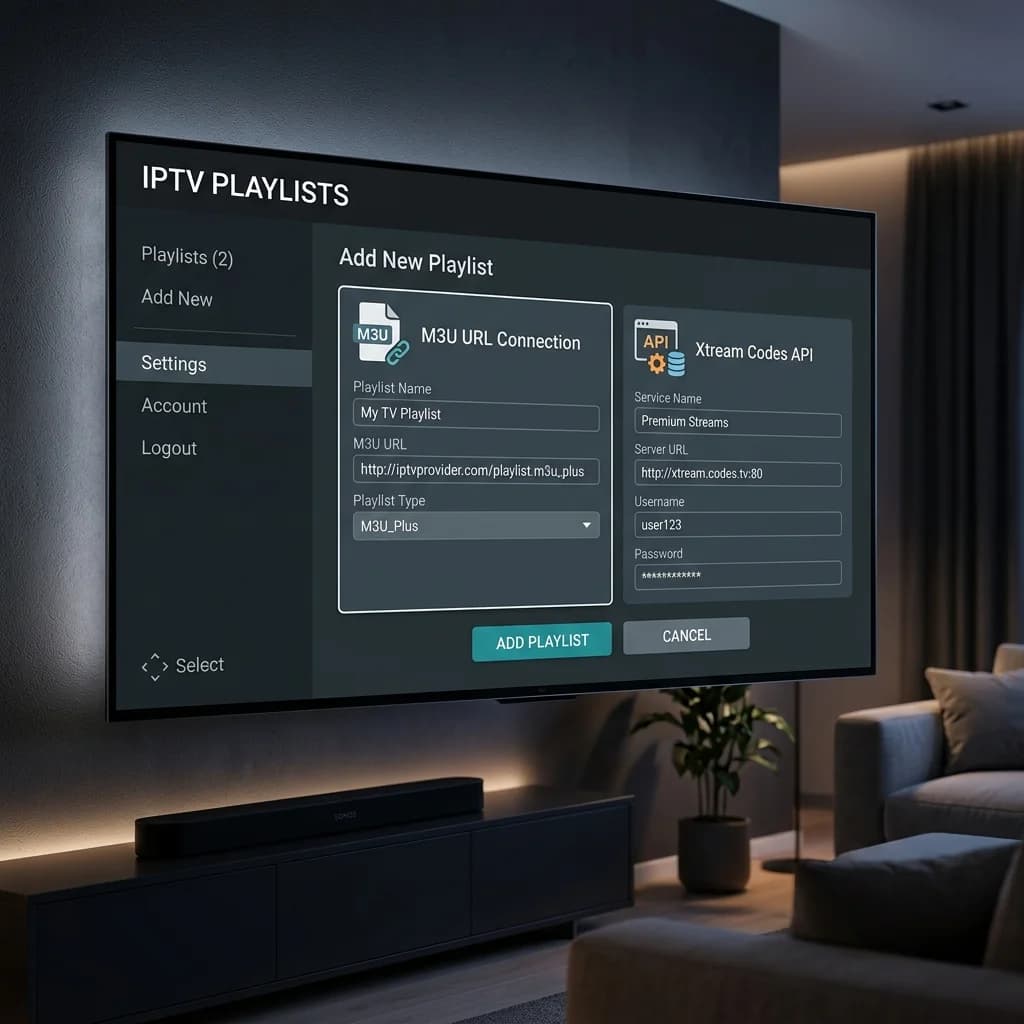
Step 1: Open your installed media player app and select 'Add Playlist' or 'Add Account'. Always choose 'Xtream Codes API' or 'XCI Login' if your subscription provider supports it.
Step 2: Enter your Server URL carefully. Pay strict attention to protocol (`http://` vs `https://`), domain name, port number (`:80` or `:8080`), and trailing slashes. Do not include trailing slashes at the end of the Server URL field unless specified by your provider.
Step 3: Type your Username and Password. Passwords are strictly case-sensitive. Watch out for common remote control auto-correct errors, such as capitalization of the first letter or unintended spaces inserted at the end of text fields. This exact entry mistake is common enough on Smart TV remotes that it has its own diagnostic path in the Smart TV IPTV setup mistakes guide.
Step 4: If using an M3U URL on legacy hardware, paste the complete M3U link into the M3U URL field and assign a recognizable Playlist Name (e.g., 'channelmoa HD'). If using Amazon Fire OS hardware, our Firestick IPTV setup guide explains how to use the Downloader app and phone remote apps for rapid typing. If configuring on Apple hardware, consult our Apple TV & tvOS IPTV setup guide for iOS Continuity Clipboard setup.
Diagnose and fix authorization, 404, parsing, and expiration errors
Even with correct settings, technical connection errors can interrupt playback. Identifying the precise HTTP error code or player alert allows you to resolve the root cause quickly without contacting support unnecessarily.
Below is a diagnostic workflow covering the four most frequent playlist connection failures encountered during daily streaming.
A systematic 5-minute troubleshooting flow
1. Authorization Failed / 401 Unauthorized: This error indicates that the server rejected your credentials. Check for typos in your username or password. Verify that your subscription term has not expired. If credentials are correct, check whether you have exceeded your maximum allowed simultaneous streams across household devices.
2. 404 Not Found / Cannot Connect to Server: A 404 error means the specified URL path does not exist on the server. Double-check the Server URL port number and verify that your internet connection is active. Test the Server URL in a web browser on your phone or laptop connected to the same Wi-Fi network to confirm the domain is reachable.
3. Failed to Parse Playlist / Invalid M3U Format: This error occurs when the player downloads a text file that does not conform to M3U syntax. It often happens when your ISP blocks the stream request and returns an HTML error page instead of the raw playlist file. Changing your router's DNS settings to Google DNS (8.8.8.8) or Cloudflare DNS (1.1.1.1) frequently restores raw data access.
4. Playlist Timeout / Endless Loading Loop: When large M3U files stall client hardware, inspect your local Wi-Fi signal or switch to a wired Ethernet cable. For comprehensive network diagnostic steps, read our IPTV buffering root causes guide.
Pre-configuration technical checklist before activating your subscription
Before purchasing or renewing a streaming subscription line, reviewing a technical readiness checklist ensures your hardware, home network, and software ecosystem are prepared for high-bitrate live TV and 4K VOD content.
A structured pre-configuration review saves time and ensures a smooth first-day viewing experience across all household screens.
Documenting your playlist connection for reliable long-term viewing
Verify Device RAM & Storage: Ensure your Smart TV or streaming box has at least 1.5GB of available RAM and 500MB of free internal storage for EPG cache data.
Confirm Preferred Credentials: Decide whether your player application performs best with Xtream Codes API or M3U_Plus URLs before submitting your order details.
Perform Network Speed & Latency Tests: Verify at least 25Mbps download speed and sub-50ms ping latency at the physical location of your television.
Save Your Order Credentials: Keep a secure record of your Server URL, Username, Password, expiration date, and customer support contact. For guidance on evaluating provider claims and line terms, refer to our legal IPTV subscription checklist.
Related channelmoa resources
FAQ
What is the difference between an M3U URL and an M3U file?
An M3U file is a static text file stored on your local device. An M3U URL is a web address that downloads the latest version of the M3U file from the server every time your player app refreshes.
Why is Xtream Codes API recommended over M3U playlists?
Xtream Codes API fetches channel categories, program guides, and VOD metadata on demand via JSON requests. It loads significantly faster, uses less device memory, and supports native catch-up TV.
What does 'Failed to Parse M3U' mean?
This error means the player app received invalid data instead of a proper M3U syntax file. It is usually caused by an expired subscription, mistyped URL, or ISP network block returning an HTML error page.
How do I fix EPG guide data showing 'No Information'?
Verify that your channel tvg-id matches the XMLTV source ID, clear your app's EPG cache, verify your internet connection, and confirm that your subscription includes active EPG data.
Can I use Xtream Codes credentials on multiple devices simultaneously?
Simultaneous device limits depend on your active package terms. Logging in on more screens than your package allows will result in authorization errors or line suspensions.
Do I need a separate EPG URL when using Xtream Codes API?
No. The Xtream Codes API protocol automatically supplies the Electronic Program Guide directly from the server endpoints, eliminating manual EPG URL entry.
Need help choosing the right credential format for your app?
Contact channelmoa support on WhatsApp with your exact device model and installed application name for immediate credential and setup guidance.