IPTV Buffering Root Causes: How to Find the Real Problem Before Blaming the Service
Diagnose IPTV buffering by separating internet, Wi-Fi, device, app, routing, peak-time congestion, server load, and playback-setting problems.
Published by the channelmoa editorial team. This article provides general streaming setup guidance and distinguishes device or regional variables where they apply.
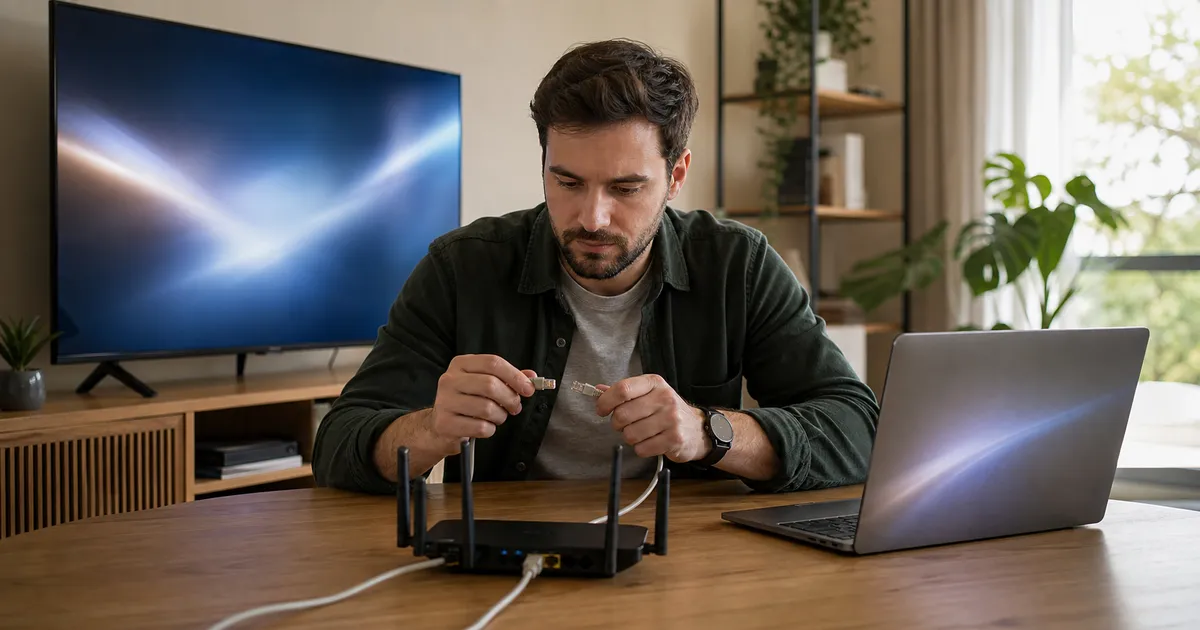
Define the symptom before choosing a fix
Buffering has several possible causes, and the streaming service is only one of them. Before assuming it is the service, two questions eliminate the most possibilities fastest: is it happening on every device in the home, or just one? And is it happening on every app or item, or just one? Answer those two first, because the rest of this page is organized around what each answer rules out.
If it is happening on every device at once, the cause is almost always the internet connection, the router, the account, or the service itself — not any single screen. If it is happening on only one device, the cause is almost always that device's app, storage, decoder, or local signal — not the broader network. Write down which pattern applies before testing anything else, along with whether playback stalls immediately or after a predictable period, and whether it affects live content, on-demand content, or both.
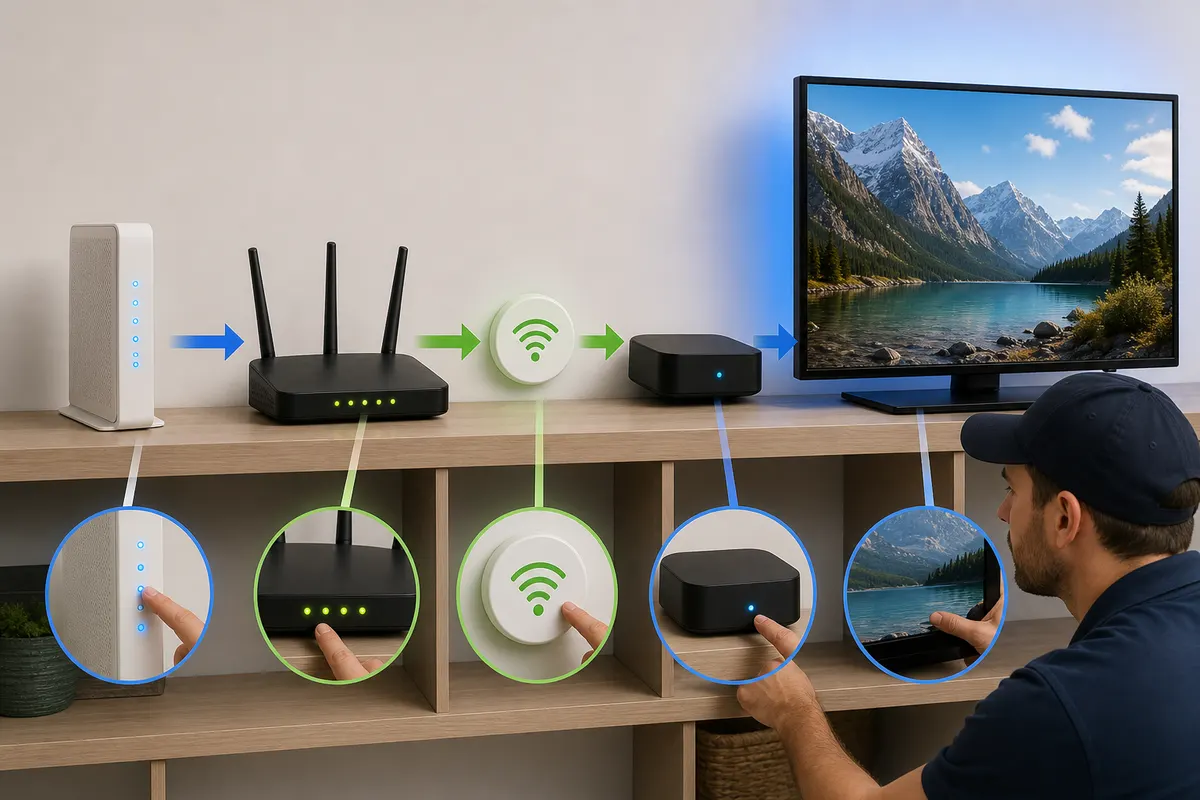
Use a four-way comparison
Compare the same authorized content on the same device over Ethernet and Wi-Fi, then compare one other supported device without exceeding account limits. Finally, test another ordinary internet service. These controlled comparisons reveal more than repeatedly pressing restart because they isolate device, wireless, account, and broader connectivity variables.
Record results in plain language: “Smart TV buffers on Wi-Fi after 8 p.m.; Ethernet is stable; phone is stable.” That single sentence gives channelmoa support a useful direction and avoids unnecessary credential changes.
The most useful comparisons also include timing. A problem that only happens in the evening usually points to congestion or household traffic, while a problem that appears immediately after launch may point to an app or device fault.
Internet speed is only the first layer
A connection needs enough sustained throughput, but latency, jitter, packet loss, and household competition also matter. A speed test may briefly select a nearby server and report a high number while the streaming route behaves differently. Repeat tests at the device and during the problem period. Watch for large swings rather than focusing only on the best result.
Wi-Fi adds distance, interference, walls, weak mesh backhaul, and crowded channels. Move the router into the open, test closer to the access point, pause uploads, and compare Ethernet. If Ethernet is consistently stable, buying a faster broadband tier may not solve the wireless design. For deeper router, DNS, and VPN-related tuning, the IPTV network optimization and VPN guide covers those settings in more depth.
Consider routing and peak-time congestion
If performance changes sharply by time of day across several services, local or ISP congestion may be involved. If one destination behaves differently while general internet access is healthy, routing or upstream capacity deserves investigation. Document dates and times; patterns help an ISP or service team distinguish a route problem from a random outage.
Avoid assuming that changing DNS changes the media route. DNS helps locate a service, but it does not normally control every network hop after connection. Use network changes only when their purpose and rollback are understood.
A practical diagnosis tree helps here: if the problem is only on one device, it is likely local; if it is on many devices and only at certain times, it is likely environmental or routing-related.
Device and app limits can imitate a network problem
A nearly full Smart TV, overheated streaming stick, outdated app, oversized EPG database, or unsupported codec can create pauses while the broadband remains healthy. Restart the device, check storage and temperature, update established software, and test a lower supported quality. If menus also lag, the device deserves attention before the provider.
App cache can become stale, but clearing it is not a universal cure. Save settings, clear only the appropriate cache, and retest. Clearing application data signs the user out and can erase the evidence needed to compare configurations. Reinstall only when version integrity or a corrupted installation is a plausible cause. Once a Smart TV app itself is the isolated cause, the Smart TV IPTV setup mistakes guide sorts login problems from playback problems by the exact symptom.
Review playback settings one at a time
Decoder mode, buffer size, frame-rate matching, output resolution, and audio format can affect stability. Change one setting and replay the same sample. A huge buffer may delay startup without fixing packet loss; software decoding may help compatibility but overwhelm a weak processor.
A stable 1080p choice is better than unstable 4K. Quality should match the complete chain: authorized source, account, route, network, decoder, HDMI connection, and display. Once bandwidth or the display chain is the isolated cause, the 4K streaming requirements guide covers the complete signal path in more depth.
A good support message should not say only “it buffers.” It should say when it happens, on which device, and whether the same content fails on another device or another app.
Know when the issue is upstream
When multiple customers or devices show the same item-level failure while unrelated internet services remain healthy, the service or content delivery path may need attention. Provide the item, category, timestamp, app, and location—without publishing credentials. A professional IPTV streaming service should investigate patterns rather than asking every customer to reset a router indefinitely.
Temporary capacity events can occur anywhere in a delivery chain. The useful question is not who to blame first, but which boundary the evidence crosses. A good support exchange narrows that boundary and communicates realistic next steps.
A diagnosis order that preserves evidence
Check account status and session limits; compare other internet services; compare one other authorized item; restart the app; inspect storage and updates; test Ethernet; restart the device and router; then contact support with the results. This order moves from low-risk observations to broader changes.
Do not factory-reset hardware early. A reset destroys the known environment, creates new configuration risks, and rarely repairs a remote routing or service issue. Preserve the clues until the fault category is clear.
Close the case with a written result: the cause found, change made, test used, and date. If the improvement is temporary, that history prevents the next support conversation from starting at zero.
Follow the isolation sequence in order
The comparisons above reduce to five ordered questions. Answer them in sequence, since each one narrows the field before the next one matters:
1. Does the fault affect every device, or just one? Every device points toward the network, the router, the account, or the service; one device points toward that device specifically.
2. If it is one device, does the same authorized content play normally on a second supported device over the same connection? A pass here narrows the fault to the first device's app, storage, decoder, or local signal.
3. If it is every device, is a wired Ethernet connection stable while Wi-Fi fails on the same content? A pass here narrows the fault to the wireless path, not the broadband connection itself.
4. If Ethernet also fails, does another ordinary internet service, unrelated to the streaming app, work normally on the same connection? A pass here narrows the fault to the streaming route specifically, not the whole household connection.
5. If every check above passes and the fault is still limited to one item, one category, or one recurring time window, the remaining evidence points to the service or delivery path rather than the household setup.
What this method can and cannot prove
This method has one honest limitation: it cannot fully rule out an intermittent, service-side issue that only appears under specific load, such as a delivery-path problem that surfaces during one busy hour or on one specific piece of content. The five questions above make that kind of issue easier to recognize — a fault that follows no device, no single app, and no consistent time is the pattern that points there — but confirming it usually needs the provider's own visibility into the delivery path, not just what one household can test from its side of the connection.
That clarity is still worth having. A report built from these five questions gives a specific pattern to investigate rather than a general complaint, and that is the difference between a support conversation that starts with a router reset and one that starts with the actual evidence.
A root-cause isolation matrix
Buffering is a symptom, not a diagnosis. Change the scope, time, device, and connection one at a time; the pattern usually reveals which layer deserves attention.
Define the scope
One item, one category, one app, one device, and the entire household represent very different failures. Check another authorized item, another app, and another supported device without creating simultaneous-session conflicts.
Evidence to collect: Write down exactly what works and fails, including whether menus load and whether playback ever begins. Decision rule: Escalate narrow content symptoms differently from a device-wide or whole-home internet outage.
Compare wired and wireless
High peak Wi-Fi speed can coexist with interference, roaming, retransmission, and packet loss that interrupt sustained video. Connect Ethernet temporarily or test close to the router, then repeat the same playback sample at the same quality.
Evidence to collect: A stable wired result with a repeatable wireless failure isolates the local radio path without blaming the service. Decision rule: Improve placement, channel planning, mesh backhaul, or cabling before purchasing unnecessary extra internet speed.
Compare devices
Limited memory, heat, storage, and decoder compatibility can make one screen buffer while another uses the same account and network normally. Test sequentially on a second supported device, then inspect the affected device's updates, storage, power, and decoder setting.
Evidence to collect: Keep the connection and authorized content comparable so the device is the meaningful changed variable. Decision rule: Repair or replace the local device when the fault consistently follows it across network paths.
Compare times
Evening household demand, neighborhood congestion, internet routing, and source load may not appear during a midday speed test. Record several incidents with local time, duration, item type, connection, and other household traffic.
Evidence to collect: A repeatable time window is stronger evidence than one isolated interruption and gives an ISP or provider something actionable. Decision rule: Avoid permanent configuration changes based on an incident that cannot be reproduced or scoped.
Inspect the playback buffer
Very small buffers react quickly but tolerate little jitter; very large buffers may increase startup time and memory use. Use provider-supported defaults first, then test one modest buffer or quality change while holding all other variables steady.
Evidence to collect: Measure startup, interruption frequency, recovery time, and audio sync for long enough to expose the original symptom. Decision rule: Keep the adjustment only when it improves repeated tests rather than masking a failing Wi-Fi or device foundation.
Escalate with evidence
General reports such as 'it always buffers' omit the pattern required to distinguish account, device, ISP, route, and delivery issues. Provide device, app, connection, local time, affected scope, error behavior, and results from wired, alternate-device, and alternate-app checks.
Evidence to collect: Hide credentials and avoid sending unrelated router passwords, payment records, or personal account access. Decision rule: Ask for the next diagnostic step, then test it in isolation and add the result to the same incident timeline.
A decision tree for isolating buffering without guesswork
Start with scope. If one authorized item buffers while others play, record the category, time, and source rather than changing the home network. If every item in one player fails, test another legitimate application or supported device sequentially. If all internet services struggle, move attention to the local network or ISP. This decision tree prevents a narrow source symptom, an app failure, a weak television, and a whole-home outage from receiving the same generic restart advice.
Interpret speed tests cautiously. Download speed is useful, but a short burst does not show sustained throughput, packet loss, jitter, latency variation, or Wi-Fi retransmissions. Run several tests at the viewing device during the affected period and compare them with Ethernet. A result far above the stream's expected bitrate can still buffer if delivery arrives unevenly. Conversely, a modest but consistent wired connection can outperform a fast wireless test that collapses whenever interference appears.
Wi-Fi congestion often follows a pattern: evening interruptions, improvement near the router, trouble when a microwave or neighboring network is active, or a mesh device roaming between nodes. Test the same sample and quality while changing only the network path. Move equipment into the open, prefer wired backhaul where practical, and pause large household transfers. Do not copy random DNS addresses; name resolution cannot repair a weak radio link or replace missing sustained capacity.
Device limits are revealed when the fault follows one screen. Check storage, system and app versions, heat, power, decoder support, and available memory. Test the affected device on Ethernet and a second supported device on the original connection. If the second device remains stable, buying more internet bandwidth is unlikely to fix the first device's decoding or storage problem. Preserve the known-good decoder and display settings while making each comparison.
Peak-time routing or delivery issues require timestamps. Record local time, duration, affected scope, connection, quality, and the result of alternate-device and alternate-app checks across several incidents. Provide that timeline to the appropriate support team without credentials. A single evening outage cannot prove a chronic route problem, but a repeatable window gives an ISP or provider actionable evidence. Keep changes reversible and reject any apparent fix that cannot improve the same controlled test twice.
Sources and further reading
Related channelmoa resources
FAQ
Why can IPTV buffer despite a fast speed test?
A short peak-speed result does not reveal packet loss, jitter, Wi-Fi interference, route quality, device decoding, or congestion over time.
How do I tell whether Wi-Fi is the cause?
Compare the same device and content over a temporary Ethernet connection under similar conditions.
Can a full device cause buffering?
Yes. Low storage can disrupt cache, guide updates, app updates, and general performance, especially on Smart TVs and compact streaming devices.
When should I contact the provider?
After recording the exact symptom and a few safe comparisons. Include timestamps, affected content, device, app, and whether other internet services work.
Can this process rule out every possible cause?
No. It cannot fully rule out an intermittent, service-side issue that only appears under specific load or on specific content. It narrows the pattern enough that a support conversation can start from evidence instead of a guess.
Bring evidence to the support conversation
Send channelmoa the device, app, connection type, timing, and comparison results so the right layer can be investigated.